Quick Answer
To reduce interruptions with Focus Mode on iPhone, stop treating it like a single on/off switch. Create separate modes for deep work, meetings, and evenings; set a tight allow list (2–3 people max); silence lock-screen previews; and schedule modes so you never have to remember to toggle them. Most leaks come from 'Allow Time Sensitive' and apps you forgot to block — fix those first.
If you mainly need one thing on your lock screen — today's priority, not a notification audit — NoteWall puts it there in five seconds: type, set wallpaper, done. No Focus profiles, no per-app Settings tour. Everything below is the full Apple setup for anyone who wants to silo notifications inside iOS first.
Why You Still Get Interrupted After Turning On Focus Mode
You enabled Work Focus, silenced Slack, and still got a GroupMe ping during a client call. That's the gap between what Focus Mode promises and what most people actually configure. Learning to reduce interruptions focus mode iphone isn't about flipping a toggle — it's about closing the five default holes Apple leaves open: Time Sensitive notifications, repeated-call bypass, lock-screen banners, shared Focus status that nudges people to break through, and a Home Screen that still shows every distracting app icon. Fix those and Focus Mode finally behaves like the quiet room you thought you were building.

UC Irvine researcher Gloria Mark found that recovering full concentration after a digital interruption takes roughly 23 minutes — long enough to erase a morning's deep-work block from a single Slack ping.
That number is why notification hygiene matters more than willpower. One 'quick check' isn't quick — it resets the cognitive clock. If you're pairing Focus Mode with time blocking on iPhone, each unblocked interrupt doesn't just steal 30 seconds; it can collapse the entire 90-minute block you protected. The tweaks below target the settings that cause most of those surprise pings.
7 Settings That Actually Reduce Interruptions on iPhone
These are ordered by impact. Do the first three before anything else — they fix the majority of leaks:
Turn off Time Sensitive for non-essential apps. Settings → Notifications → [App] → toggle off Time Sensitive Notifications. Delivery apps, social networks, and shopping apps abuse this flag to punch through Focus. If an app isn't health, safety, or a calendar alert you chose, it doesn't need the bypass.
Shrink the People allow list to three names. Settings → Focus → [Your Mode] → People → Allow Notifications From. Most people add 'Favorites' (dozens of contacts) and wonder why Focus still buzzes. Three is the right number: partner, kids' school, one emergency contact. Everyone else can wait.
Disable 'Allow Repeated Calls.' In the same Focus mode under People, turn off Allow Repeated Calls. Otherwise a telemarketer's second ring in three minutes breaks through — the same loophole that lets group chats feel urgent.
Hide lock-screen notification previews. Settings → Notifications → Show Previews → When Unlocked (or Never). A silenced notification you can still read is an interruption. Curiosity does the rest.
Use a custom Home Screen page per Focus. Settings → Focus → [Mode] → Home Screen → Custom Pages → select only the one page with your work tools. Instagram can't steal you if its icon isn't on the page you're looking at.
Schedule modes — never toggle manually. Settings → Focus → [Mode] → Add Schedule → Time, Location, or App trigger. Manual toggling fails the first busy week. Tie Work Focus to weekday 9–5 or your office address so it runs without executive function.
Silence Focus status sharing for deep work. Settings → Focus → [Mode] → Focus Status → turn off sharing for modes where you don't want Messages telling people you're available. Status sharing invites 'just one quick question' messages that become pings.
⚠️ The Hidden Culprit: Delivery and Summary Notifications
Settings → Notifications → Scheduled Summary bundles low-priority alerts — good. But check Settings → Notifications → [each chatty app] and set Notification Grouping to Off and delivery to Scheduled Summary or Off entirely. Group notifications still light up your lock screen and pull attention even when they're 'silent.'
Build a Deep-Work Focus Mode in 5 Minutes
- 1
Create a new Focus.
Settings → Focus → '+' → Custom → name it 'Deep Work.' Pick a muted icon color so Control Center shows you it's active.
- 2
Silence everything, then allow almost nothing.
People: add zero (or one emergency contact with Emergency Bypass on their contact card). Apps: allow only Phone and Calendar if you need meeting alerts.
- 3
Lock screen: minimal.
Tap Lock Screen → choose a plain wallpaper. Toggle Show On Lock Screen off for widgets that surface news or social feeds.
- 4
Home screen: one page.
Tap Home Screen → Custom Pages → select a single page with only your current project app and Notes.
- 5
Schedule it.
Add Schedule → Time → weekdays 9:00 AM–11:30 AM (or whenever you do real thinking). Optional: add a second afternoon block.
That’s seven settings, a custom Home Screen page, and a schedule you’ll need to revisit every time your work changes. Honest math: twenty minutes in Settings versus five seconds in NoteWall to put “Finish Q2 deck — slides 8–12” on your lock screen. Reduce interruptions focus mode iphone with Focus Mode — then give yourself one visible reason to stay on task without maintaining another profile. NoteWall handles the lock-screen half; Focus handles the silencing.

Focus Filters: The Setting Most People Skip
Focus Filters go one level deeper than silencing notifications — they change what data your apps show while a mode is active. A Work Focus can display only your work calendar; a Personal Focus can hide work email accounts entirely in Mail. Less incoming data means fewer reasons to open an app and trigger a scroll spiral.
- •
Calendar: Settings → Focus → [Mode] → Focus Filters → Calendar → select only your work calendar during Work Focus.
- •
Mail: Same path → Mail → choose which inboxes appear. Hide your personal Gmail during work blocks.
- •
Messages: Filter to specific conversations so group threads vanish without blocking the one person who needs you.
- •
Safari: Use Tab Groups — Work Focus shows only your 'Client Research' tab group; Personal shows everything else.
Filters don't block notifications by themselves — pair them with the allow-list tweaks above. Together they address both incoming interrupts and the pull of seeing the wrong inbox when you unlock for something else.
Focus Mode vs Do Not Disturb: Which Quiets More?
In iOS 18 and later, Do Not Disturb is just one Focus preset — not a separate system. The difference is granularity: DND is blunt (silence nearly everything), while custom Focus modes let you allow Slack during Work but block it during Deep Work. For a full comparison of when to use each, see our guide to iPhone Do Not Disturb for productivity. The short version: use DND (or Sleep Focus) for off-hours; use named custom modes for the specific interruptions you're trying to eliminate.
One more leak to close: Live Activities and StandBy widgets can surface sports scores, ride-share ETAs, and food-delivery timers on your lock screen even when notifications are silenced. Settings → [App] → Live Activities → turn off for anything non-essential. In StandBy, long-press a widget stack and remove news or social widgets from the nightstand view. These aren't traditional notifications, but they pull the same attention.
💡 Tip
Focus Mode hides incoming noise — but it doesn't remind you what you were doing when you instinctively picked up the phone. Put your current task on the lock screen ('Finish Q2 deck — slides 8–12') so the first thing you see after an unlock redirects you back. That's the gap our iPhone Focus Mode productivity hacks guide covers in more depth.
The goal isn't zero notifications forever. It's making interruption the exception during the two-hour blocks where one ping costs you twenty minutes of recovered focus.
Keep Reading: iPhone Do Not Disturb for Productivity: 5 Setups That Don't Backfire · Time Blocking on iPhone: A Schedule You'll Actually Follow · iOS Tips & Automation Guide
Photos by Konstantin Shmatov, Plann, Robert Bye on Unsplash.
Focus Mode FAQ
How do I reduce interruptions with Focus Mode on iPhone?
Create a custom Focus mode, add only essential contacts to the allow list, turn off Time Sensitive notifications for non-critical apps, hide lock-screen previews, and schedule the mode so it activates automatically. Most leaks come from too-broad allow lists and apps using the Time Sensitive bypass.
Why do I still get notifications during Focus Mode?
Common causes: Time Sensitive notifications are still enabled for chatty apps, Allow Repeated Calls is on, the contact is in your allowed People list, or the app delivers to a widget or Live Activity that isn't silenced. Audit each app's notification settings individually — Focus only filters what you've configured it to filter.
What's the difference between Focus Mode and Do Not Disturb?
Do Not Disturb is now a Focus preset inside the same system. Focus modes let you create multiple profiles (Work, Deep Work, Sleep) with different allow lists, Home Screen pages, and lock-screen layouts. DND is the simplest 'silence almost everything' option; custom modes give finer control.
Can Focus Mode block phone calls?
Yes — calls from numbers not on your allow list are silenced and sent to voicemail. Enable Emergency Bypass on specific contacts (Edit Contact → Ringtone → Emergency Bypass) so true emergencies still ring. Turn off Allow Repeated Calls unless you want a second ring to break through.
Does Focus Mode work across iPhone, iPad, and Mac?
If you're signed into the same Apple ID, Focus modes can sync across devices when Share Across Devices is enabled in Settings → Focus. Turning on Work Focus on your iPhone can silence your Mac too — useful for desk work, but worth testing so you don't miss a Mac-only alert you still need.
Silence the Noise, Keep the One Thing That Matters
Focus Mode blocks the pings — but you still need something on the lock screen telling you what to do instead of scrolling. NoteWall puts today's priority on your wallpaper in five seconds, no per-mode Home Screen surgery.
Download NoteWall
Founder of NoteWall. Building tools that turn your lock screen into a productivity system. About →
You might also like
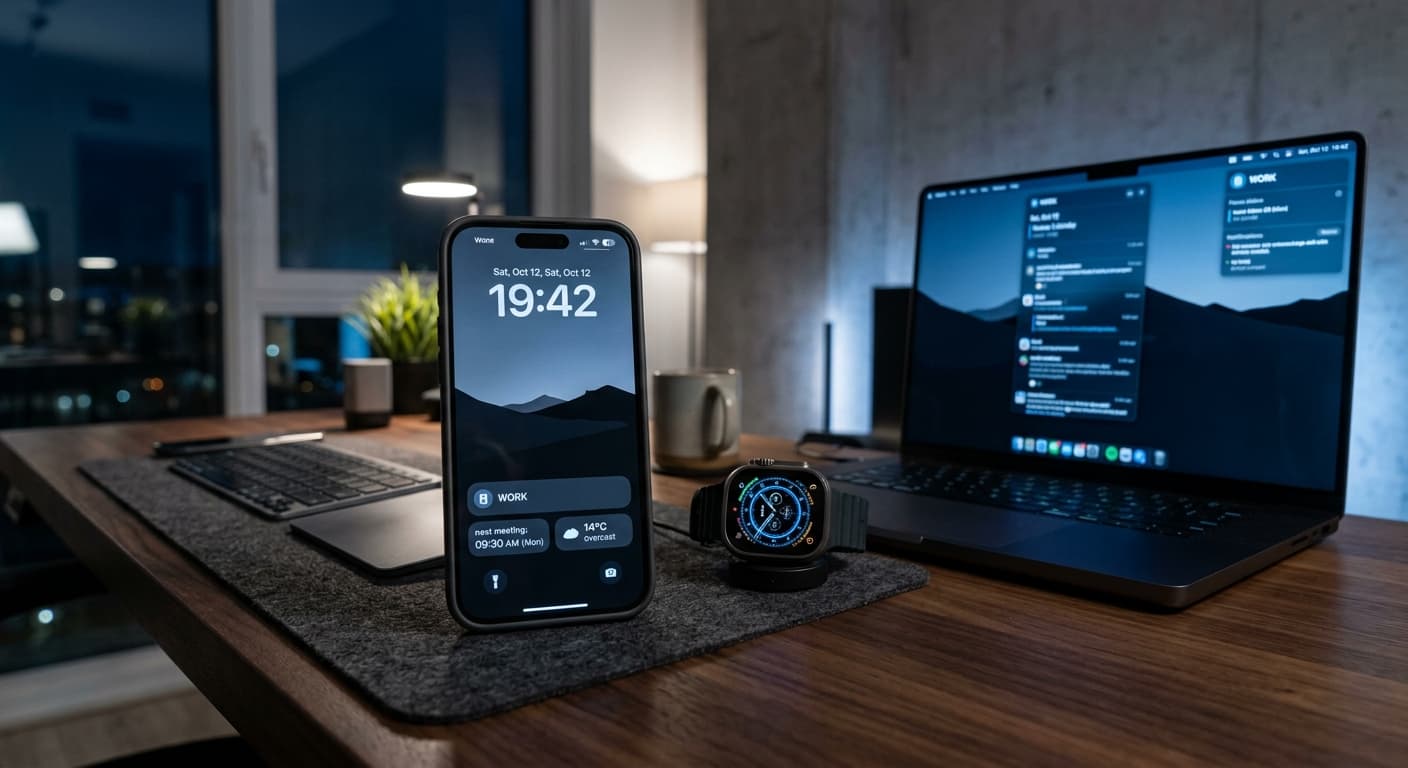
Unlock Peak 2026 Productivity: The Ultimate iPhone Focus Mode Hacks Guide
Master iPhone Focus Modes in 2026. Discover advanced AI-powered automation, cross-device integration, and deep work strategies to boost your productivity.
iPhone Do Not Disturb for Productivity: 5 Setups That Don't Backfire
iPhone Do Not Disturb for productivity sounds simple — until you miss a call from your kid's school. Here are 5 setups that protect focus without breaking real life.
iPhone StandBy Mode: 7 Productivity Setups Worth Trying
iPhone StandBy mode is more useful than 'always-on clock' suggests. Here are 7 productivity tips for getting real value out of the charging hours and beyond.