The short version
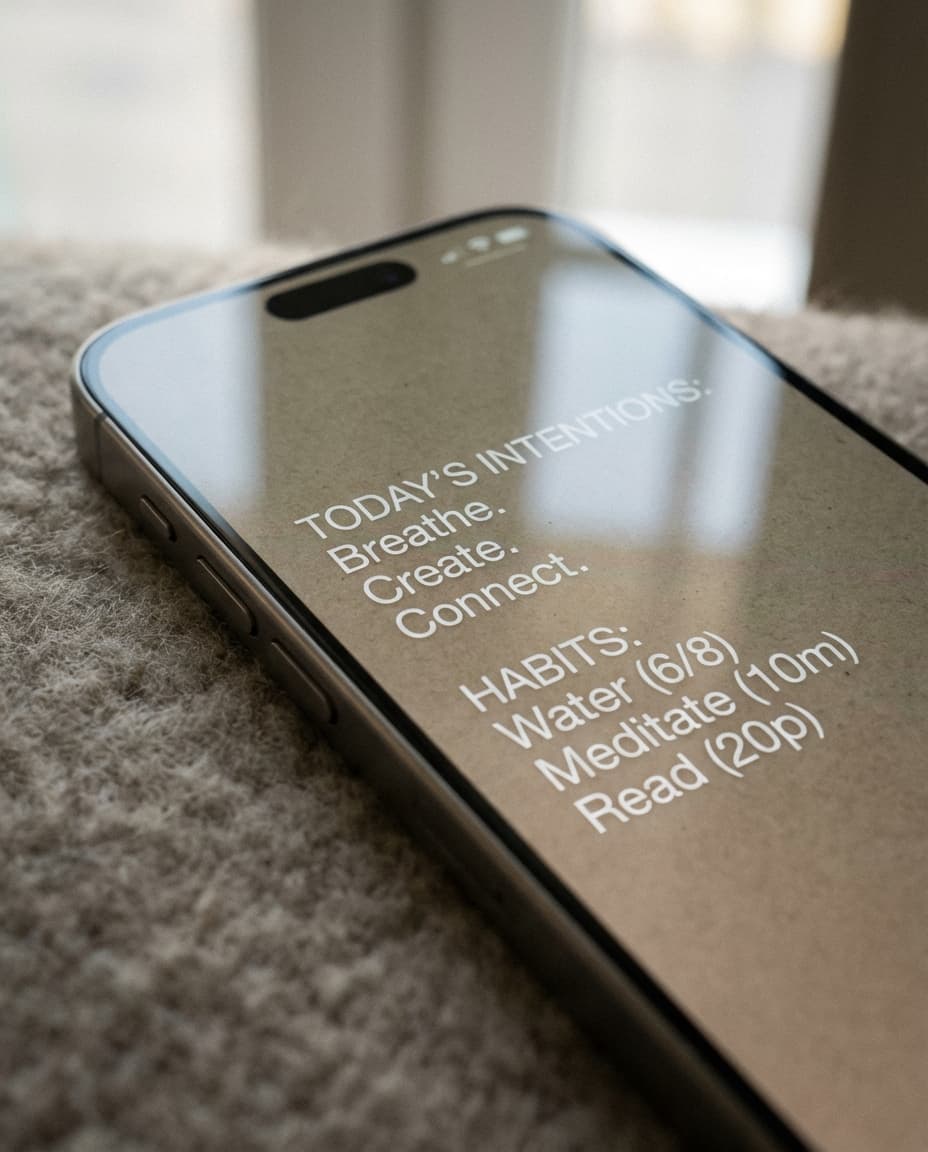
Make the cue visible and the habit small. Your phone can show the reminder every time you pick it up, but it cannot do the habit for you. A note on the Lock Screen is one way to keep the cue in sight, and a dedicated habit tracker is the other way to log it.
How do habits actually form?
Habits form through repetition in a stable setting. Wood, Quinn and Kashy's diary study defined a habit as "behavior that had been performed almost daily in stable contexts." So the practical job is to make the setting and the cue repeat, not to depend on motivation each day.
In Study 2 of Wood, Quinn and Kashy (2002), 209 undergraduates at Texas A&M University logged their behaviors hour by hour, and 43% were habits: performed just about every day, usually in the same place (35% in the 70-student Study 1). The students were a college sample, so it describes what students log, not what any app does. Source: Journal of Personality and Social Psychology 83(6).
Where a phone can help is the cue. NoteWall is our app, so this is not a neutral recommendation: it puts your own notes and goals on the iPhone Lock Screen, written into the wallpaper by an Apple Shortcut. Its App Store listing names "Habit tracking" among its uses, and a subscription is required (NoteWall on the App Store). For goals beyond habits, see our goal tracking on iPhone guide.
When do habit trackers work, and when do they fall short?
A habit tracker works when you open it, and fails on the days you forget to. Many trackers need you to remember the habit in order to log it, which is the same problem again. Notifications and widgets help, and some trackers handle this well. Our habit tracker app roundup compares seven.
- •
A tracker you must open is easy to skip on busy days
- •
Logging every day adds a step to the habit itself
- •
A notification can be swiped away, and a widget only helps if it is on a screen you see
What does NoteWall do for habits, and what does it not do?
NoteWall shows your own notes, goals and reminders on the Lock Screen. Its FAQ says a subscription includes "reminders, habits and streaks, and the Shortcut that sets your wallpaper." It does not do the habit for you, and it needs an Apple Shortcut to set the wallpaper.
The US App Store listing, read on November 4, 2026, shows the app as "Lock Screen Notes: NoteWall" from Karol Billik, in Productivity, requiring iOS 17.0 or later, with a 4.4 average from 109 ratings. It says you can "Add notes, reminders, goals, habits, or quotes, and they appear right on your lock screen." How a habit or streak is drawn on the wallpaper is best seen in the app and its listing screenshots, so this page does not describe it.
Setup has a hard part. The FAQ lists the steps (install the Shortcut, add notes, choose backgrounds, allow permissions, generate the first wallpaper) and puts the whole process at about 2 minutes. It explains that "iOS doesn't let apps directly change your wallpaper, so we use Apple's Shortcuts app as a bridge." Many people find the Shortcut step the difficult one, and if the wallpaper does not change, start with our Shortcut troubleshooting guide. After you edit a note, the route is the Update Wallpaper button, which opens the Shortcut; the FAQ says it takes about 5 seconds.
Steps: Build a Habit Cue on Your Lock Screen
Pick one small habit, tie it to something you already do, write the cue as a short note, and put the note where you will see it. The list below works with any note-on-wallpaper method, including one you make by hand in Settings > Wallpaper > Add New Wallpaper.
Pick one small habit. Specific beats ambitious: "Walk 10 minutes after lunch" rather than "get fit."
Attach it to something you already do. "After I pour my coffee, I read one page." The existing routine is the cue.
Write the cue as a short note. A few words, in the order you will act: when, then what.
Put it on the Lock Screen. With NoteWall, add the note in the app and apply the wallpaper through its Shortcut. By hand, make a wallpaper with the text and set it in Settings > Wallpaper.
Update it when the habit changes. Edit the note and refresh the wallpaper. A stale cue is easy to ignore.
Review weekly. Keep the habit, shrink it, or drop it. A habit you keep skipping is usually too big.
Which other apps put notes on the Lock Screen?
Several do. On the US App Store today, LockScreenNotes (Takumi Banjoya, 1,702 ratings), 3minders - Lock Screen Notes (Alexandr Moscaliuc, 8 ratings) and Sticky Notes Widget (TAPUNIVERSE LLC, 6,602 ratings) all have listings alongside NoteWall. Our roundup of lock screen notes apps compares seven, with listing facts for each. Choose by how you want to see the note, whether a subscription is acceptable, and how much setup you will put up with.
Choose a dedicated habit tracker if you want to log every completion in an app. Choose a Lock Screen note if your main problem is forgetting the habit exists.
Habit and Lock Screen Questions
Can my phone build habits for me?
No. A phone can show a cue and keep a record, but the habit is something you do. The diary study above defines a habit by repetition in a stable context, so build the routine first and let the phone support it.
Does NoteWall cost anything?
A subscription is required to use NoteWall. The App Store shows the plans, prices and billing periods before you pay, and they can change over time.
Does NoteWall track streaks?
NoteWall's FAQ lists habits and streaks as part of a subscription. This page does not describe how they appear, so check the App Store listing's screenshots or the app itself before you decide.
Keep Reading: if your habit belongs in the morning, see setting up your iPhone for a morning routine.
Keep your habit cue in sight
NoteWall puts your own notes and goals on your Lock Screen with an Apple Shortcut. A subscription is required; the App Store shows the terms before you pay.
Download NoteWall
Founder of NoteWall. Building tools that turn your lock screen into a productivity system. About →
You might also like

How to Put a To-Do List on Your iPhone Lock Screen
Three ways to put a to-do list on your iPhone Lock Screen: Apple's Reminders widget, a wallpaper that carries your list, or a widget app, compared.
Minimalist iPhone Lock Screen Setup in 5 Steps
Set up a minimalist iPhone Lock Screen with Apple's own tools: a quiet wallpaper, one or two widgets, a Focus-linked second screen and one short note.
iPhone Lock Screen Customization Tips: 8 Worth Setting Up
iPhone lock screen customization tips from Apple's own guide: a second Lock Screen, clock style, widgets, bottom controls, Focus links and notification privacy.