Quick Answer
The best iPhone automation ideas 2026 has to offer aren't the flashy ones — they're the quiet Personal Automations in the Shortcuts app that fire on a trigger (a time, a place, a charger) and handle small tasks before you think to. Set a wind-down routine at 10 p.m., a Focus when you reach the office, a backup when you plug in overnight. Build a few, forget they exist, get the time back.
What Makes These iPhone Automation Ideas 2026 Different
Most 'automation' listicles are really just app recommendations. These iPhone automation ideas 2026 focus on Personal Automations — the trigger-based routines built into Apple's free Shortcuts app that run with little or no tapping. A Personal Automation has two parts: a trigger (when this happens) and an action (do this). The magic is in the trigger. A shortcut you have to launch is just a faster button; a shortcut that fires on its own when you arrive home, plug in, or hit a certain time is the thing that actually removes work from your day. iOS has quietly made more of these run without a confirmation tap, which is what makes 2026 a good year to revisit them.
A 2022 Harvard Business Review study analyzing roughly 137 million logged actions found people toggle between apps and websites about 1,200 times a day — and re-orienting after each switch adds up to nearly four hours a week. Automation's real payoff is cutting the number of switches, not shaving seconds off any one task.
That Harvard Business Review figure is the case for automation in one number. The cost of a busy phone isn't the individual taps — it's the 1,200 little context switches that fracture your attention. Every automation you build is one decision the phone makes so you don't have to, and one fewer reason to open an app and fall down a hole. Below are nine worth setting up, grouped by the kind of trigger that fires them.
Time-Based Automations Worth Setting Up
Time triggers are the easiest to build and the hardest to forget, because the day itself does the remembering. Open Shortcuts → Automation → New → Time of Day to set these up.
- •
10 p.m. wind-down. At a set time each night, turn on a Sleep Focus, dim the screen to its warmest setting, and open a single calming page or playlist. The hardest part of a bedtime routine is starting it — let the clock start it for you.
- •
Morning brief. First alarm-off (or 7 a.m.) triggers a shortcut that reads your first calendar event, today's weather, and your commute time aloud. You get the day's shape before you've touched a single app.
- •
Workday bookends. At 9 a.m., switch on a Work Focus and silence personal apps; at 5:30 p.m., turn it off and surface a 'shut down' checklist. The boundary that's impossible to hold manually becomes automatic.
- •
Midday water nudge. A 1 p.m. and 4 p.m. trigger that flashes a single reminder to drink water or stand up. Tiny, but it's the kind of thing you'll never do on willpower alone.
- •
Friday review. A Friday-afternoon automation that opens your notes app to a weekly-review template. The ritual happens because the phone teed it up, not because you remembered.

Location & Trigger Automations
These react to where you are or what you do with the hardware — and they feel the most like magic, because nothing on the clock predicts them.
- •
Arrive home. When you reach home, turn off Work Focus, switch Wi-Fi audio to your speaker, and clear the work notifications you've been ignoring. The transition from 'on' to 'off' stops leaking into your evening.
- •
Leave the office (or gym). A location-exit trigger that texts a partner 'heading home' and starts your commute playlist or podcast. One less thing to fumble with while you're walking to the car.
- •
CarPlay connect. When CarPlay connects, start directions to your most likely destination by time of day and resume audio. When it disconnects, log where you parked.
- •
Charger / overnight. When you connect to power after 11 p.m., run a backup, enable Low Power Mode, and turn on Do Not Disturb. The phone uses its idle hours productively without you babysitting it.
- •
NFC tag tap. Stick a cheap NFC sticker on your desk or nightstand; tapping it can flip on a Focus, start a Pomodoro timer, or toggle your whole 'deep work' setup in one motion.
Build Your First Automation in 6 Steps
If you've never made one, start with the 10 p.m. wind-down — it's forgiving and you'll feel the payoff the same night.
- 1
Open Shortcuts
and tap the Automation tab at the bottom.
- 2
Tap + → Create Personal Automation
, then choose Time of Day and set it to 10:00 PM, Daily.
- 3
Tap New Blank Automation
, then Add Action and search for Set Focus — choose Sleep, turn it On.
- 4
Add a second action
: search Set Appearance or Set Brightness and dim the screen for night.
- 5
Add a final action
to open a wind-down page — Play Playlist, Open App (a journal), or a note.
- 6
Tap Next
, toggle Run Immediately on (and turn off 'Notify When Run' once you trust it), and save.
💡 Tip
Start with automations that fail gracefully. A wind-down that dims your screen does no harm if it misfires; an automation that deletes or sends something is unforgiving. Build confidence on the low-stakes ones first, leave 'Notify When Run' on for a week, then trim the notifications once each routine has proven itself.

When Automations Become Their Own Chore
Here's the honest catch with any list like this: every automation you add is also something to maintain. Triggers break after an iOS update, a Focus you forgot you set silences a text you needed, and a stack of fifteen Shortcuts becomes its own little system to manage — the exact overhead you were trying to remove. And automations are great at doing things on a trigger, but they're bad at one job: keeping your actual priorities in front of your face. A Shortcut can dim your screen at 10 p.m., but it can't make you remember the two things that matter tomorrow.
That's the gap NoteWall fills. Instead of building a Shortcut to nag you, you write your priorities straight onto your lock screen — the surface you already see dozens of times a day — and change them in about five seconds when they shift. It pairs well with the automation ideas above: let Shortcuts handle the machine tasks (Focus, backups, brightness) and let a lock-screen note handle the human ones. If you want to go deeper on the Shortcuts side, our guides to Apple Shortcuts for daily reminders and Focus Mode productivity hacks cover the building blocks these automations rely on.
⚠️ Before You Automate Everything
Two gotchas worth knowing: location and Bluetooth triggers can drain battery if you stack too many, and some actions still demand a confirmation tap for security (anything touching messages, payments, or deletions). Audit your automations every couple of months — kill the ones you never actually feel, because a forgotten misfiring automation is worse than no automation at all.
Mistakes That Make Automations Backfire
- •
Building ten at once. You won't remember what fires when, and one bad trigger sours you on the whole idea. Add one, live with it a week, then add the next.
- •
Automating things you do rarely. The payoff comes from frequency. A routine that triggers twice a year isn't worth the setup or the maintenance.
- •
Silent failures. Turning off all notifications before you trust an automation means you won't notice when it quietly stops working. Trust first, mute later.
- •
Over-silencing with Focus. A Work Focus that hides everything will eventually hide something urgent. Whitelist the few people who must always get through.
- •
Confusing automation with memory. Automations move tasks; they don't hold your intentions. Keep your real priorities somewhere you'll see them, not buried in a Shortcut.
Frequently Asked Questions
What are the best iPhone automation ideas for 2026?
The highest-payoff ones are trigger-based Personal Automations in the Shortcuts app: a 10 p.m. wind-down, a Work Focus that flips on when you reach the office, an overnight backup when you plug in, and a CarPlay routine that starts directions and audio. Focus on triggers that fire often — frequency is where the time savings come from.
Do iPhone automations run without asking me to tap confirm?
Many do now. When you create a Personal Automation you can toggle 'Run Immediately,' and most time, location, and charger triggers will run silently. A few sensitive actions — sending messages, payments, deleting data — still require a confirmation tap for security, and that's by design.
Are iPhone automations free, or do I need an app?
They're free. Apple's Shortcuts app is built into iOS and handles every automation in this guide — time, location, NFC, CarPlay, and charger triggers included. You only need a third-party app if you want a specific action Shortcuts can't do natively, like writing a note directly to your lock-screen wallpaper.
Why did my iPhone automation stop working?
Usually an iOS update reset a permission, or the trigger condition changed — a renamed Wi-Fi network, a moved 'home' location, or a revoked location permission. Open Shortcuts → Automation, check the automation is still enabled, and confirm its trigger and the permissions it relies on. Re-saving it often fixes a silent failure.
Keep Reading: Apple Shortcuts for Daily Reminders · iPhone Focus Mode Productivity Hacks · Action Button Productivity Uses · iOS Tips & Automation — Pillar Guide
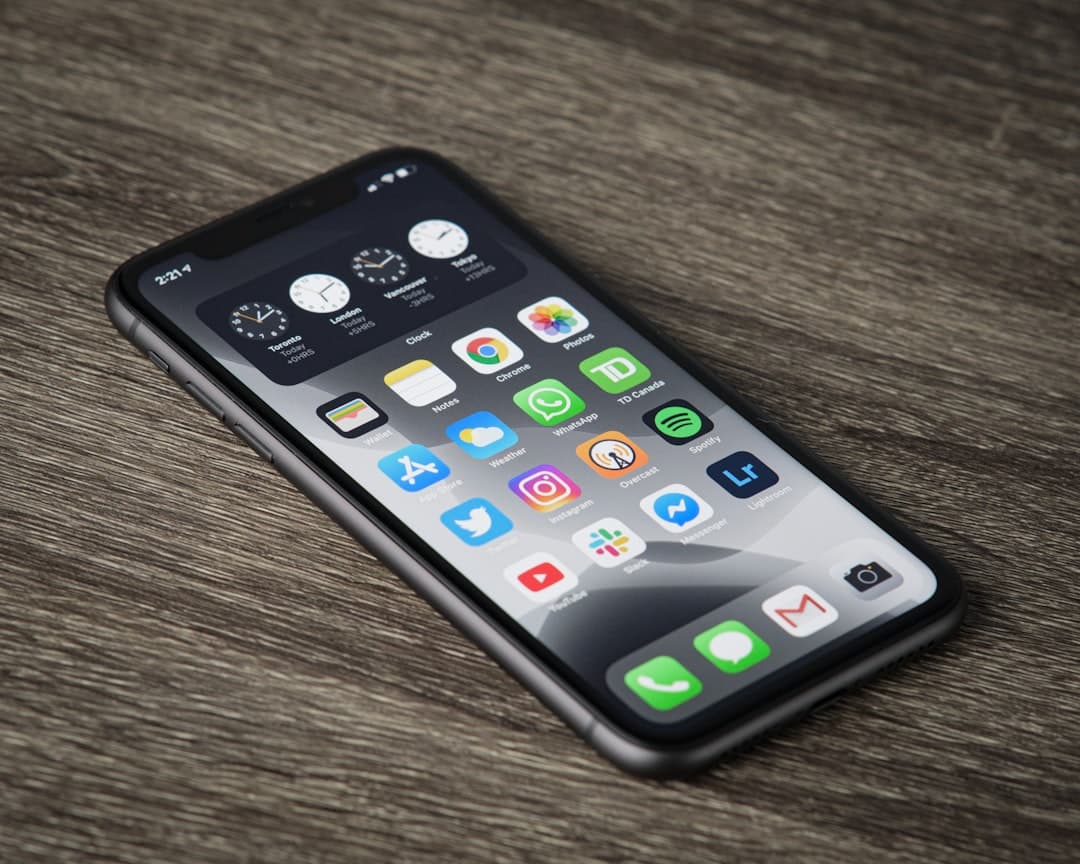
Photos by Thom Bradley, Sahej Brar, and Yura Fresh on Unsplash.
Let Shortcuts Run the Machine, Let NoteWall Run You
Automations are great at dimming screens and starting backups — but they can't keep tomorrow's two priorities in front of your face. NoteWall puts them on your lock screen in five seconds, no Shortcut to build or maintain.
Download NoteWall Free
Founder of NoteWall. Building tools that turn your lock screen into a productivity system. About →
You might also like
8 Lock Screen Ideas for Students Worth Trying This Semester
Turn the screen you check most into a study tool. These 8 lock screen ideas for students put deadlines, schedules, and focus where you can't scroll past them.
Best Daily Planner App for iPhone 2026: 5 Picks That Stick
The best daily planner app for iPhone in 2026 isn't the prettiest one — it's the one you keep opening on a Wednesday. Here are 5 honest picks that survive past week two.
Unlocking Peak Efficiency: Master iPhone Shortcuts Automation in 2026
Level up your iPhone game with advanced Shortcuts automation tips. Go beyond the basics & learn how to create personalized, powerful workflows!