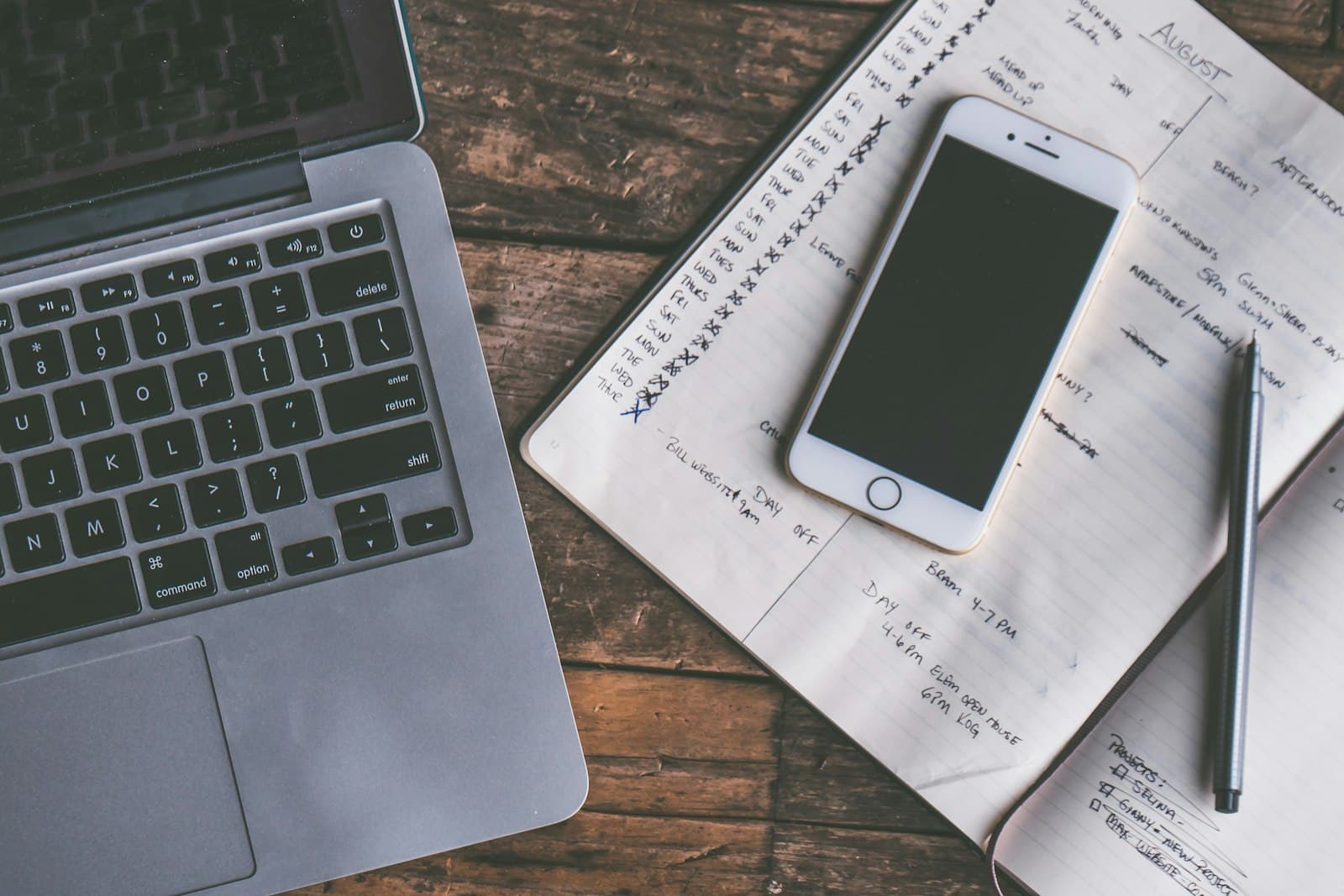
Quick Answer
Time blocking on iPhone means giving every task a specific slot in your day — usually in the Calendar app — instead of working from an open-ended to-do list. Done right, it's one of the most effective focus methods there is. The one thing that makes or breaks it: you have to actually see the plan during the day. Keep today's blocks visible and the schedule holds; bury them in an app and it falls apart by mid-morning.
What Is Time Blocking on iPhone?
Time blocking on iPhone is the practice of dividing your day into labeled chunks — 9–10am 'deep work,' 10–10:30 'email,' 2–3pm 'calls' — and committing to a single task per block. Popularized by productivity writers like Cal Newport, it works for two psychological reasons. First, it kills decision fatigue: a plain to-do list tells you what to do but never when, so you re-litigate your priorities all day. Time blocking makes those calls once, in advance. Second, it harnesses Parkinson's Law — work expands to fill the time available — by giving each task a hard boundary instead of an open-ended runway. On an iPhone you already have every tool you need: Calendar, Reminders, Shortcuts, and Focus modes.
Research by Gloria Mark at UC Irvine found it takes an average of 23 minutes and 15 seconds to fully return to a task after being interrupted. Time blocking exists to protect those minutes — and it only works if interruptions don't quietly win.
That number is the whole case for the method. Every ping, every 'quick check,' every unplanned task doesn't just cost the two minutes you spend on it — it costs the twenty-plus minutes of momentum on either side. A time block is a fence around your attention. The entire job of the system is to make that fence visible and real, so the day runs on your plan instead of everyone else's interruptions.

Three Ways to Time Block (Pick One to Start)
"Time blocking" is really an umbrella for three related methods. Most people fail because they reach for the most rigid one first. Match the style to your actual problem:
- •
Classic time blocking — assign every task its own slot, back to back. Best for days with varied work and a lot of small tasks that otherwise slip through. The most structured option, and the easiest to over-engineer.
- •
Task batching — group similar tasks into one block (all email at 11am, all calls at 2pm) instead of scattering them across the day. Best if context-switching is your main leak. Lighter and more forgiving than full time blocking.
- •
Day theming — give each day a single dominant focus (Monday admin, Tuesday deep work, Wednesday meetings). Best for people juggling multiple roles or projects. The lowest-maintenance version — you plan once a week, not every morning.
How to Set Up Time Blocking on iPhone
- 1
Block it in the Calendar app.
Create a calendar event for each chunk and color-code by category — deep work, meetings, admin, breaks. Set up reusable categories once under 'Add Calendar,' then assign colors. Seeing the day laid out as colored bars is half the value.
- 2
Use Reminders for flexible blocks.
Not everything needs a hard event. Time-tagged reminders work well for 'sometime this afternoon' tasks that need a nudge without locking a slot.
- 3
Pair each block with a Focus mode.
Settings → Focus lets you silence everything except what a block needs. A 'Deep Work' Focus during your 9–11 block keeps Slack and Instagram out (more iPhone Focus mode hacks here).
- 4
Automate the start with a Shortcut.
Build a Shortcut that flips on the matching Focus, starts a timer, and opens the app you need — one tap to drop into a block instead of five taps of setup.
- 5
Plan tomorrow tonight.
Spend two minutes each evening laying out the next day's blocks. A plan made in advance survives the morning; one you improvise at 9am rarely does.
💡 Tip
Start with three big blocks, not a minute-by-minute grid. Over-engineered schedules collapse the first time something runs long. Block a morning deep-work session, an afternoon focus window, and a wind-down — then leave buffer between them for real life.

A Realistic Time-Blocked Day
Here's what a sane time-blocked day looks like for a typical knowledge worker. Notice the buffers — they're where most schedules live or die:
- •
8:00–9:00 — Morning routine, no screens. Protects the day before it starts.
- •
9:00–11:00 — Deep work block: one project, Focus mode on, phone face down.
- •
11:00–11:30 — Email and messages, batched into a single pass.
- •
11:30–12:30 — Buffer and lunch. The buffer quietly absorbs anything that ran long.
- •
12:30–2:00 — Meetings and calls, grouped together so the rest of the day stays clear.
- •
2:00–3:30 — Second focus block for lighter creative or admin work.
- •
3:30 onward — Shutdown routine: review what slipped, then block tomorrow.
Why Most Time Blocking Fails on iPhone
Here's the failure pattern almost everyone hits. You spend twenty minutes building a beautiful color-coded calendar, feel great about it — and then never open the Calendar app again that day. By 11am you're reacting to whatever email or notification is loudest, not following your plan, because the plan is invisible. A calendar is a pull surface: it only shows you the day when you deliberately go looking. The most carefully time-blocked schedule on earth does nothing if it stays behind an app icon you don't tap.
This is where putting the plan on your lock screen changes the math. NoteWall lets you write today's two or three blocks straight onto your wallpaper — '9–11 Deep work · 1–2 Calls · 4–5 Email' — so the schedule is in front of you every time you pick up your phone, no Calendar app required. You stop needing to remember to check the plan, because the plan is already there, hundreds of times a day, in the exact spot where interruptions arrive.
Common Time-Blocking Mistakes to Avoid
- •
Scheduling every minute. A grid with no gaps shatters the first time a task runs long. Leave 25–50% of the day unblocked as buffer.
- •
Blocking only work. If meals, breaks, and shutdown aren't on the calendar, work bleeds into all of them. Block rest too.
- •
Ignoring your energy. Don't put deep work at 3pm if you crash after lunch. Match your hardest blocks to your peak hours.
- •
Treating blocks as unmovable. When something runs over, slide the next block instead of abandoning the whole system. A plan you adjust beats a plan you quit.
- •
Keeping the plan invisible. The most common mistake of all: building the schedule and never looking at it again. Put it somewhere you genuinely can't avoid.
Make Your Blocks Impossible to Ignore
The strongest setup uses two layers. Keep the full, detailed schedule in your Calendar app where it belongs — every event, every color, every alert. Then promote just today's top blocks to your lock screen with NoteWall, so the plan stays visible without you lifting a finger. Calendar holds the structure; the wallpaper keeps you honest. Pair it with a daily reminder system on iPhone and the day runs on rails instead of reactions.
Frequently Asked Questions
How do I start time blocking on iPhone?
Open the Calendar app and create an event for each chunk of your day, color-coded by category. Add a matching Focus mode for deep-work blocks, and review the next day's plan each evening. Start with three blocks before building anything more detailed.
What's the best app for time blocking on iPhone?
The built-in Calendar app handles the core method for free, and Reminders covers flexible tasks. A lock-screen note app like NoteWall keeps today's blocks visible so you actually follow the plan instead of forgetting it inside an app.
Why does my time blocking keep failing?
Usually because the plan goes invisible during the day, or because you scheduled every minute with no buffer. A calendar only helps when you open it, and an airtight grid breaks the first time a task runs long. Keep generous buffers, and keep the plan somewhere you can't avoid.
How many time blocks should I plan per day?
Start with three: a morning deep-work session, an afternoon focus window, and a wind-down. Leave buffer between them. Over-detailed grids tend to collapse the first time a task runs long.
Is time blocking good for ADHD?
It can help, because it externalizes decisions and adds structure — but rigid grids often backfire. People with ADHD usually do better with a few loose blocks, generous buffers, and the plan kept highly visible rather than hidden inside a calendar app.
Keep Reading: iPhone Focus Mode Productivity Hacks · Build a Daily Reminder System on iPhone · Pomodoro Technique iPhone Apps · iOS Tips & Automation — Pillar Guide
Photos by Jessica Lewis, 2H Media, and Christin Hume on Unsplash.
A Schedule You Can't Forget to Check
Time blocking only works if you see the plan. NoteWall puts today's blocks on your lock screen, so your schedule is in front of you all day — no Calendar app to open. Free to start.
Try NoteWall Free
Founder of NoteWall. Building tools that turn your lock screen into a productivity system. About →
You might also like

8 Lock Screen Ideas for Students Worth Trying This Semester
Turn the screen you check most into a study tool. These 8 lock screen ideas for students put deadlines, schedules, and focus where you can't scroll past them.
Unlock Productivity: The Best Lock Screen Apps for iPhone
Transform your iPhone's lock screen into a productivity powerhouse! Discover the best lock screen apps to boost focus and achieve your goals. Get more done!
How to Show Reminders on iPhone Lock Screen (Without Notifications)
Want to see your tasks right on your lock screen? Learn how to display reminders on your iPhone lock screen without relying on notification banners.