Automating Your Lock Screen with Shortcuts
One of the most powerful automations you can build is an automatic lock screen update. Here's how it works with NoteWall:
1. Open the Shortcuts app on your iPhone
2. Create a new Shortcut or Personal Automation
3. Set a trigger (time of day, when you arrive at work, when you open an app, etc.)
4. Add the "Set Wallpaper" action
5. Configure it to use your NoteWall-generated wallpaper
You can create multiple automations for different contexts:
- Morning: Lock screen shows today's top priorities
- Work arrival: Lock screen shows work tasks
- Evening: Lock screen shows personal goals and tomorrow's prep
- Weekend: Lock screen shows personal projects and relaxation reminders
This context-switching happens automatically. You never have to think about it — your phone adapts to your schedule.
Focus Modes for Deep Work
iOS Focus modes do more than silence notifications. They can change your entire phone experience based on context:
Work Focus: Show only work-related apps and widgets. Hide social media. Allow only calls from colleagues. Pair with a work-focused lock screen showing your professional priorities.
Personal Focus: Allow social and personal apps. Show family contacts. Lock screen shows personal goals and family reminders.
Sleep Focus: Minimal screen. Lock screen shows tomorrow's wake-up priorities so the first thing you see in the morning is your plan, not notifications.
Do Not Disturb: Complete silence. Lock screen shows a calming message or your most important focus task.
The key insight is linking Focus modes to lock screens. When your Focus mode changes, your lock screen should change with it — giving you context-appropriate reminders without any manual work.
Widgets That Actually Help (and Ones That Don't)
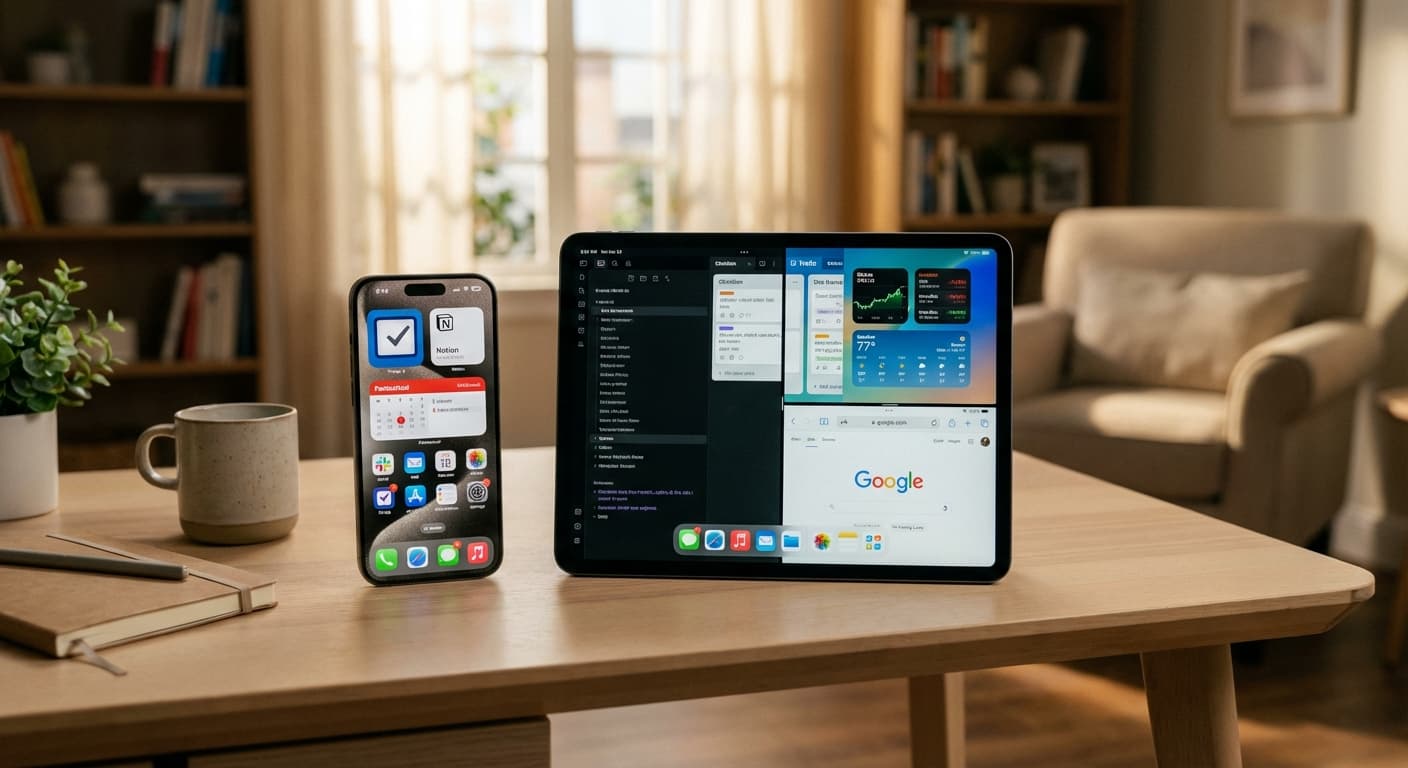
Not all widgets are created equal. Some genuinely help productivity. Others are just information noise that adds to distraction.
Widgets worth using:
- Calendar widget showing your next event (context, not distraction)
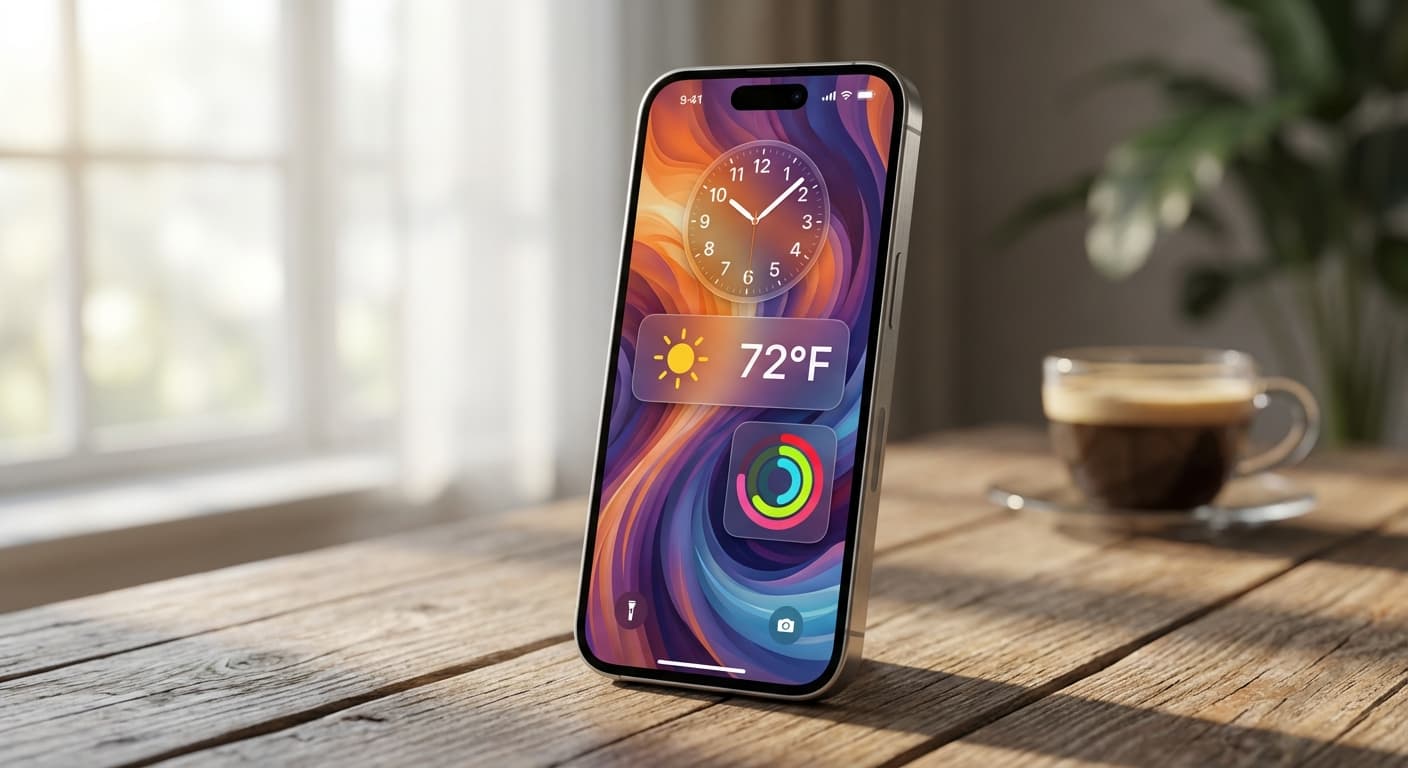
- Weather widget (plan your day in one glance)
- Battery widget (practical utility)
- Reminders widget showing today's tasks
Widgets to avoid for productivity:
- News widgets (endless scroll trap)
- Social media widgets (dopamine bait)
- Stock tickers (anxiety fuel unless you're a trader)
- Email widgets (creates urgency around non-urgent things)
The difference between lock screen notes and widgets: widgets provide real-time data from apps. Lock screen notes provide your priorities — things you've deliberately chosen to focus on. Both have their place, but your priorities should be the first thing you see, not your inbox count.
StandBy Mode as a Productivity Dashboard
StandBy mode (introduced in iOS 17) turns your iPhone into a bedside or desk display when charging in landscape orientation. Most people use it for a clock. But it's actually a powerful productivity dashboard.
Set up StandBy with:
- A large clock widget (time awareness)
- Your calendar showing upcoming events
- A photo widget cycling through motivational images or goal visualizations
Pair this with NoteWall for a complete system: StandBy shows your schedule and time when your phone is on the charger, and your lock screen shows your priorities when you're on the move.
For desk workers: StandBy mode means your phone can sit on your desk as a passive dashboard without you needing to pick it up (and risk getting sucked into apps). Glance at the time and schedule, then back to work.
Building Your Complete iOS Productivity Stack
Here's the recommended setup that combines everything:
1. NoteWall for lock screen priorities — your goals visible 352 times per day without opening any app.
2. iOS Shortcuts for automation — auto-update your wallpaper each morning, trigger different lock screens based on time or location.
3. Focus modes for context switching — different notification rules and app layouts for work, personal, and sleep.
4. Native Calendar + Reminders for time-specific events — don't fight the system, use Apple's built-in tools for what they do best.
5. StandBy mode for passive desk awareness — time and schedule visible without picking up your phone.
The philosophy behind this stack: each tool does one thing well. NoteWall handles passive goal visibility. Shortcuts handle automation. Focus modes handle context. Calendar handles scheduling. No overlap, no redundancy, no complex multi-tool setups that fall apart when one app changes its API.
Simple systems last. Complex systems get abandoned.