
Quick Answer
In 2026, Apple Shortcuts transform basic alerts into intelligent, hyper-personalized reminders that leverage your entire ecosystem – iPhone, iPad, Apple Watch, and Mac. By integrating location, time, Focus Modes, and even app usage, you create proactive workflows that adapt to your day, ensuring you never miss a beat and significantly reduce mental load.
Introduction: The 2026 Challenge of Information Overload & The Smart Reminder Solution
It’s 2026. Our digital lives accelerate faster than ever. From urgent work emails to personal wellness goals, managing the sheer volume of daily tasks and keeping track of commitments is a relentless challenge. Our brains simply weren't built for this constant barrage of information. The result? Missed appointments, forgotten habits, and an overwhelming sense of always playing catch-up.
According to Asurion research, the average person checks their phone 352 times a day. Every unlock is a potential distraction, pulling you away from what truly matters.
But what if your reminders weren't just static notifications, but intelligent assistants that understood your context, your location, and even your focus? This isn't science fiction; it's the power of Apple Shortcuts for daily reminders in 2026. The evolution of Apple Shortcuts has moved far beyond basic automation, becoming a sophisticated tool for ecosystem-wide, intelligent assistance. This guide will help you unlock hyper-personalized and contextual reminders, transforming how you manage your day across all your Apple devices.
Why Apple Shortcuts Are Your Ultimate 2026 Reminder Assistant
Forget simple alarms. Today's Shortcuts leverage the deep integration of iOS 20, watchOS 13, and macOS 17, creating a truly unified experience. Since 2023, we've seen incredible advancements: enhanced triggers that respond to almost any system event, more complex logic that allows for multi-step decision-making, and tighter Siri integration that turns your voice into a powerful command center. These aren't just reminders; they're proactive and adaptive prompts designed to keep you on track.
Explore the full potential of Apple Shortcuts! Dive deeper into advanced automation techniques with our comprehensive guide: Unlocking Peak Efficiency: Master iPhone Shortcuts Automation in 2026
Foundation First: Understanding Reminder Actions in Shortcuts (Quick Refresher)
At the core of all advanced reminder shortcuts are two fundamental actions: 'Add New Reminder' and 'Find Reminders'. When adding a new reminder, you dictate its title, detailed notes, due date, the specific list it belongs to, its priority level, and crucial location-based triggers. The real magic happens with variable magic, allowing you to pass dynamic data (like meeting names, current locations, or even Health app metrics) directly into your reminders, making them incredibly flexible.
Pillar 1: Hyper-Contextual Reminders – Never Miss a Beat (Location, Time, Focus Modes)
Context is king. Your reminders shouldn't just pop up; they should understand when and where you need them most. iOS 20 takes this to new heights.
- Location-Aware: Imagine a 'Grocery List' reminder that only appears when you leave work, or a 'Call Mom' prompt as you arrive home. Set up geofence automation triggers in Shortcuts to make your iPhone intelligently nudge you based on your physical presence.
- Time-Sensitive & Dynamic: Get an 'Evening Review Prompt' precisely at sunset, or a 'Daily Hydration' reminder that adjusts based on your activity data from the Health app. Dynamic time and date variables make these possible.
- Focus Mode Integrated: When you enter your 'Work Focus', get a 'Deep Work Reminder'. Shift to 'Personal Focus' and receive a 'Family Time Alert'. Integrate your reminders directly with your iPhone Focus Mode strategy for seamless, unintrusive prompts.
Pillar 2: Habit Building & Wellness Automation – Your Personal Nudge Coach
Build healthier routines with intelligent prompts. Your iPhone becomes a subtle, encouraging coach.
- Daily Check-ins: A 'Mindfulness Moment at 10 AM' or a 'Gratitude Journal Prompt' before bed. These simple, recurring apple shortcuts for daily reminders reinforce positive habits.
- Physical Wellness: Get a 'Workout Prompt' based on your Health app data – for example, if you haven't hit your activity goal by a certain time. Or a straightforward 'Take Vitamins' reminder after breakfast. Need to track your water? Combine these with apps like NoteWall to display smart hydration reminders directly on your lock screen.
- Learning & Growth: Create a 'Read 15 mins' reminder that triggers when you open your Kindle app after a certain time of day, ensuring you consistently dedicate time to personal development.
Pillar 3: Productivity Power-Ups – Streamlining Your Workflow
Optimize your professional and personal productivity by making your reminders work harder for you.
- Project Milestones: Set a 'Follow-up on Project X task' if it’s not marked complete by End of Day. This requires integrating with task managers and using 'Find Reminders' to check status, allowing for dynamic insertion of the project name.
- Client Management: Automatically trigger a 'Prepare for client call' reminder 15 minutes before a calendar event, using the event title to dynamically populate the client's name, ensuring you're always on top of your game.
- Information Recall: Create reminders that trigger to 'Review notes for presentation' or a specific subject when you perform a search or open a related app, leveraging 'Text' actions to intelligently pull up relevant information.
Pillar 4: Ecosystem Harmony – Reminders Across All Your Apple Devices
The true beauty of Apple's ecosystem lies in its seamless continuity. Your sophisticated reminders don't live in isolation on your iPhone.
- iPhone & iPad Synergy: Shortcuts created on one device sync instantly, ensuring your reminders are accessible and actionable, no matter which screen you're using. Perfect for cross-device task management.
- Apple Watch Integration: Get actionable reminders directly on your wrist with watchOS 13. Mark tasks complete, snooze, or even respond to dynamic prompts without pulling out your phone. It's the ultimate in discreet, immediate nudges.
- Mac Automation: Use Shortcuts for macOS 17 to manage, create, and dismiss reminders from your desktop. Leverage the larger screen for complex workflows, then have the reminder seamlessly transition to your mobile devices. Handoff and Continuity ensure an uninterrupted reminder experience, making your Apple devices feel like one cohesive mind.
Pillar 5: Voice-Activated Intelligence – Siri, Your Proactive Assistant
Siri in 2026 is no longer just a simple voice command processor; it's an intelligent gateway to your custom workflows. Create custom Siri phrases like 'Siri, prep for tomorrow' which could trigger multiple tasks: checking your calendar, creating follow-up reminders, and even pulling relevant documents. Dynamic Siri responses can give you feedback on reminder status or confirm actions. This makes your entire reminder system hands-free and incredibly accessible.
Step-by-Step Guide: Building Your First Advanced Reminder Shortcut (Example Walkthrough)
Let's build a 'Post-Meeting Follow-Up' shortcut that not only reminds you but also logs the meeting details.
- 1
Open Shortcuts App:
Start a new Shortcut.
- 2
Set Trigger:
Choose 'Automation' -> 'Create Personal Automation'. Select a time-based trigger (e.g., 5 minutes after an event ends in Calendar) or 'When I Leave' a meeting location.
- 3
Get Meeting Details:
Use 'Find Calendar Events' to retrieve details of the recently ended meeting.
- 4
Create Reminder:
Add 'Add New Reminder'. Set the Title to 'Follow up on' + 'Calendar Event Title' (using a Magic Variable). Set the Due Date for the next day. Add notes like 'Discussed: Action items from meeting' – you can even prompt for these inputs when the shortcut runs.
- 5
Log Note (Optional, but powerful):
Add 'Create Note' or 'Append to Note' to log the meeting in a dedicated 'Meeting Notes' note in the Notes app. Or, if using a third-party app like NoteWall, use its 'Add to NoteWall' action to push a quick summary to your lock screen.
- 6
Test and Refine:
Run the shortcut manually to ensure all actions fire correctly and the reminder appears as expected.
Tips for Maximizing & Maintaining Your Smart Reminder Shortcuts
To keep your system running smoothly:
Best Practices: Name your shortcuts clearly and group related ones into folders. Use descriptive titles so you know exactly what each shortcut does at a glance.
Troubleshooting often involves checking permissions for apps accessing data, ensuring your data sources are correct (e.g., the right Calendar or Health app data), and verifying your logic flow. Stay updated by regularly checking for new iOS 20, macOS 17, and watchOS 13 features; Apple frequently adds powerful new actions. The Shortcuts Gallery and online communities (like Reddit's r/shortcuts) are fantastic resources for inspiration and troubleshooting.
⚠️ Stay Ahead of the Curve!
For more advanced tips and tricks on how to integrate Apple Shortcuts with your daily routines and other productivity tools, visit our iOS Tips & Automation Hub.
The Future of Reminders with AI & Apple Shortcuts (2026 & Beyond)
Looking ahead, the integration of AI will make reminders even smarter. Imagine predictive reminders that anticipate tasks based on your historical behavior, or self-optimizing schedules that automatically adjust your prompts based on your energy levels or unexpected delays. Machine learning is poised to personalize your automation to an unprecedented degree. By building robust shortcuts now, you're preparing your workflows for a future where your digital assistant truly understands and supports your unique rhythm.
Conclusion: Reclaim Your Focus, Master Your Day
The era of static, easily-ignored reminders is over. By embracing advanced Apple Shortcuts for daily reminders, you're not just setting alerts; you're building an intelligent, hyper-personalized system that adapts to your life, not the other way around. Reclaim your focus, reduce mental load, and effortlessly master your daily tasks across your entire Apple ecosystem.
Ready to Transform Your Reminder Game?
Start building your personalized, intelligent reminder system today. Combine the power of Shortcuts with smart lock screen tools like NoteWall to keep your most critical tasks front and center.
Get NoteWall Now
Founder of NoteWall. Building tools that turn your lock screen into a productivity system. About →
You might also like
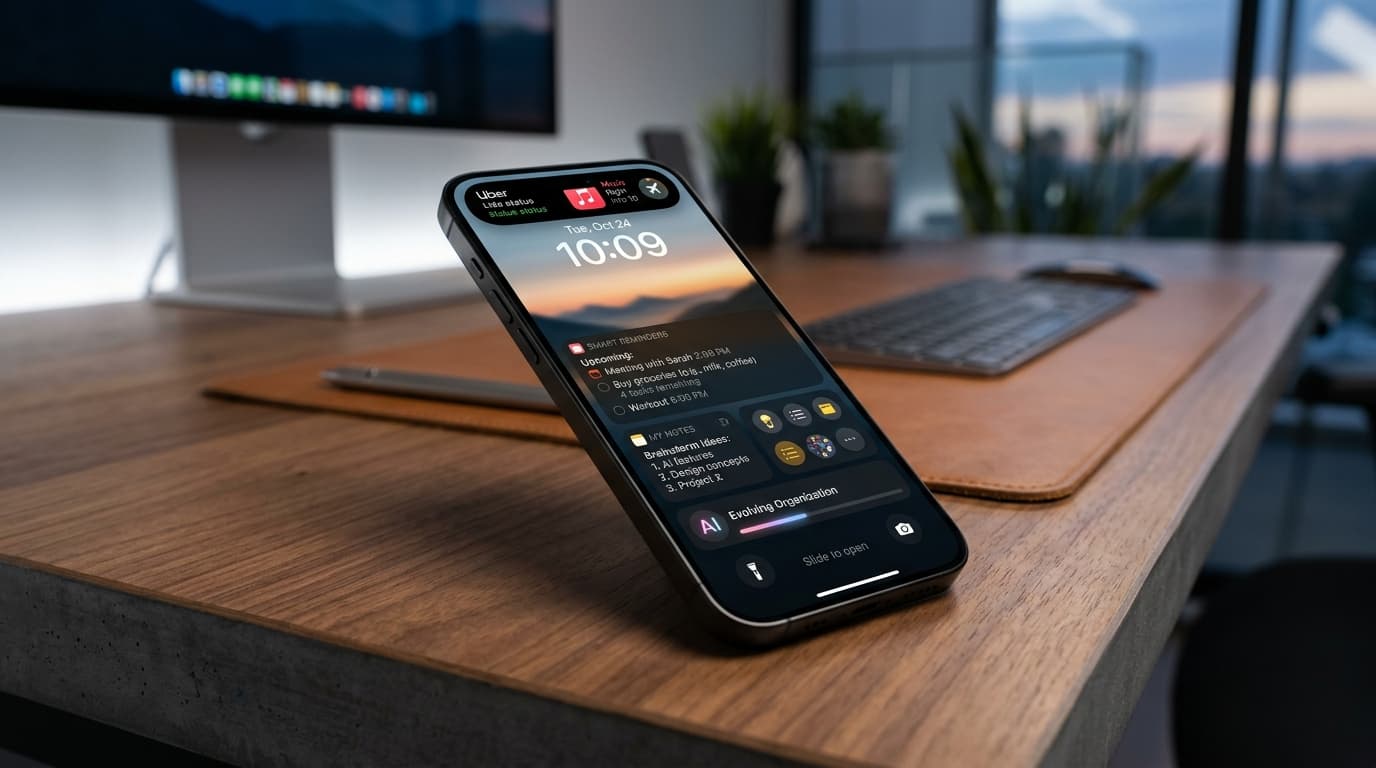
Future-Proof Your Memory: Unlocking Hyper-Personalized Lock Screen Reminders with iOS 2026 & AI
Master your memory in 2026 with cutting-edge iPhone lock screen reminders. Leverage iOS 2026 features, AI, and NoteWall for ultimate productivity.
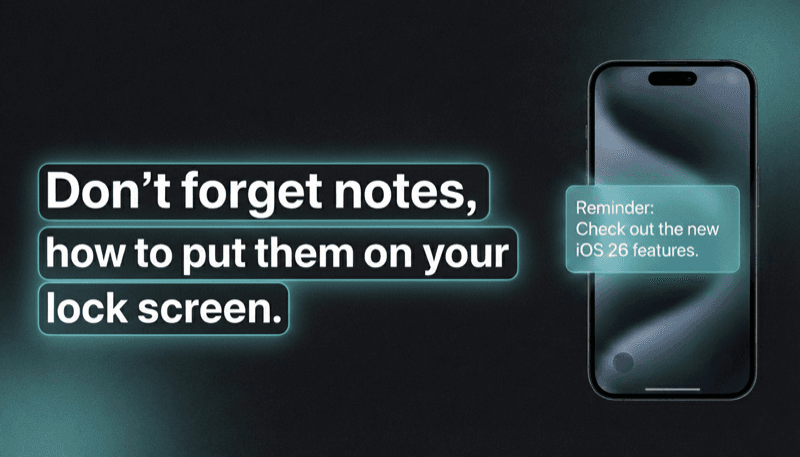
How to Show Reminders on iPhone Lock Screen (Without Notifications)
Want to see your tasks right on your lock screen? Learn how to display reminders on your iPhone lock screen without relying on notification banners.
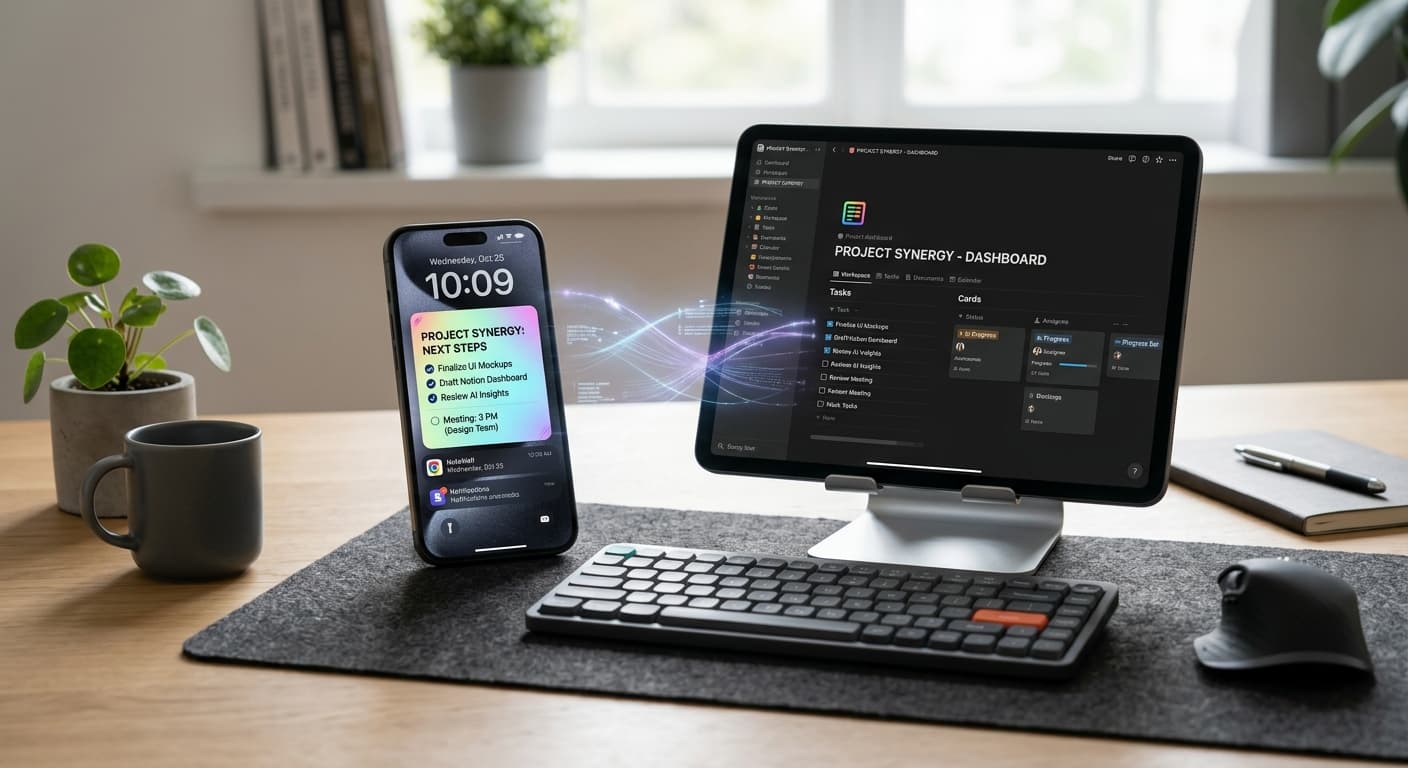
Notion vs. Lock Screen Reminders: Crafting Your 2026 Synergistic Productivity Stack
Stop choosing between Notion's depth and lock screen's urgency. Learn to strategically combine them in 2026 for a powerful, AI-enhanced reminder system. Optimize your digital memory now.