Quick Answer
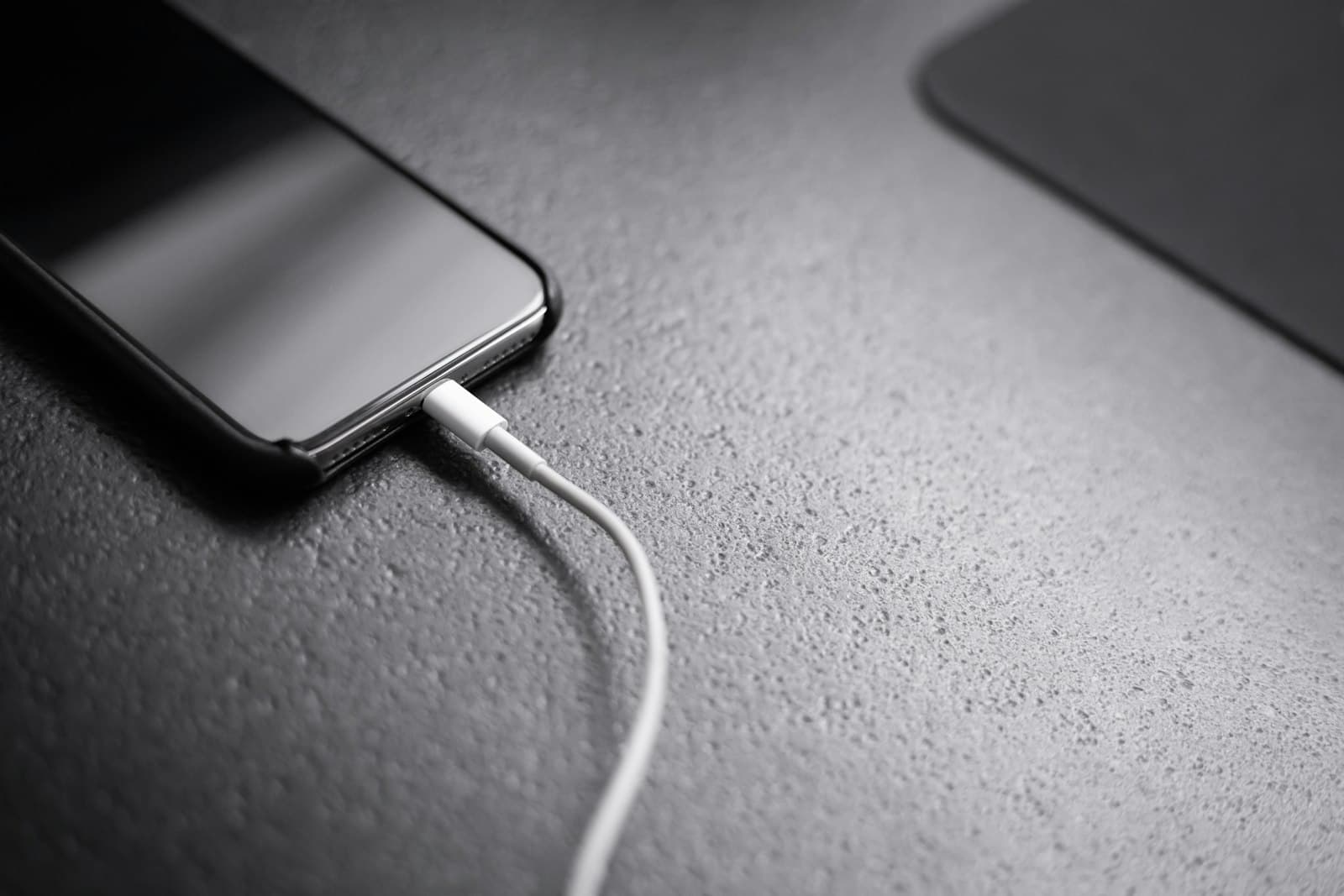
iPhone StandBy mode productivity tips mostly come down to one realization: it's not really about the always-on clock. StandBy turns any wireless-charging session into a nightstand or desk display showing widgets, photos, or a custom clock. Used well, it makes the hours your phone spends parked actually useful — but only when the phone is charging on its side.
What Is iPhone StandBy Mode?
iPhone StandBy mode arrived in iOS 17 and quietly became one of the most useful features Apple has shipped in years. It activates automatically when your iPhone is charging and in landscape orientation — typically on a wireless charger or MagSafe stand. Once active, the screen turns into a glanceable display with three swipeable views: Widgets (calendar, weather, reminders, smart stacks), Photos (an auto-rotating slideshow of your library), and Clock (analog, digital, solar, world clock — your pick). On always-on display models (iPhone 14 Pro and later) StandBy stays lit; on older devices it wakes when you tap or move.

How to Enable StandBy on Your iPhone
- 1
Check the requirements.
StandBy works on any iPhone running iOS 17 or later. The always-on version requires iPhone 14 Pro, 15 Pro, or newer.
- 2
Turn it on in Settings.
Go to Settings → StandBy and make sure it's toggled on (it is by default for most users). The same screen lets you enable Night Mode (red-tinted display in low light) and Motion to Wake for non-always-on models.
- 3
Set up a charging stand.
StandBy only activates when the iPhone is charging and in landscape. You don't strictly need MagSafe — any wireless charger, or a Lightning/USB-C cable plus a side stand, will trigger it.
- 4
Swipe between the three views.
Once StandBy is active, swipe left/right to switch between Widgets, Photos, and Clock. Swipe up/down within each view to cycle layouts.
- 5
Customize each view.
Long-press to add or remove widgets in the Widget view, pick an album for Photos, or change the Clock face.
7 StandBy Setups Worth Trying
- •
The minimalist nightstand clock. Use the Clock view with the Solar face — it warms to amber at sunset and cools at dawn. Turn on Night Mode so the screen dims to red in the dark; it's actually pleasant to glance at at 3am, unlike a glaring lock screen.
- •
The morning command center. Widget view with three slots: weather + calendar (left), reminders + mail (center), and a Smart Rotate stack that cycles based on time of day. You wake up and see what your morning looks like before reaching for the phone.
- •
The desk-charging productivity dashboard. During work hours, when the phone sits on a desk stand, run Widget view with calendar, a Reminders list pinned to your current project, and a Shortcuts widget that triggers a focus timer. Idle charge time becomes a passive status display.
- •
The slideshow that's actually meaningful. The Photos view defaults to Highlights, which can feel random. Create a smart album called 'StandBy' and curate 30–50 photos that genuinely lift you — family, places you've been, screenshots of quotes — so the rotation always lands somewhere good.
- •
The bedtime wind-down. Pair StandBy with a Sleep Focus mode that silences notifications after a set hour. The Clock face becomes the only thing the phone does at night, which makes it noticeably less tempting to grab.
- •
The kitchen timer station. When you're cooking, dock the phone in the kitchen and run the Clock view with a Timer widget. One glance shows time of day plus what's cooking — no app to open.
- •
The travel nightstand. On trips, a portable MagSafe puck plus StandBy turns any hotel nightstand into a familiar clock. Adds almost no weight and removes one of the small frictions of being away from home.
💡 Tip
Pin Smart Stacks instead of static widgets. A Smart Stack with three or four widgets cycles based on time and context — your morning calendar shows when you wake, news in mid-morning, evening reminders at dinner. You get four widgets' worth of value from one slot, and the relevance only improves as iOS learns your patterns.

Common StandBy Mistakes to Avoid
A few patterns kill StandBy's usefulness — all of them easy to avoid once you've seen them once:
- •
Stuffing the Widget view. Picking eight widgets and rotating them slowly defeats glanceability. Two or three well-chosen Smart Stacks beat a wall of static widgets you have to read carefully every time.
- •
Defaulting Photos to your full library. The Highlights album surfaces random screenshots, food photos, and old utility receipts. Curate a small 'StandBy' album so the rotation always lands on something you actually want to see.
- •
Forgetting to turn on Night Mode. A full-brightness clock at 2am wakes you up. Night Mode dims the display to red and is the whole difference between StandBy being a calm nightstand presence and a low-key sleep disruption.
- •
Leaving Motion to Wake on for always-on iPhones. On iPhone 14 Pro and later, Motion to Wake adds nothing — StandBy stays lit anyway. Toggle it off so the screen doesn't flicker every time you shift in bed.
- •
Picking a busy Clock face for the bedroom. Solar and Float are great by day, but the simple digital clock (or Analog) is what you want at night. Save the fancy faces for the desk.
Where StandBy Falls Short
As good as it is, StandBy has one obvious limit: it only works while the iPhone is charging and in landscape. That covers the nightstand, the desk wireless charger, and the kitchen counter — typically a few hours a day. The other 80% of the time, when you're carrying the phone in your pocket and pulling it out vertically, StandBy isn't running. None of those productivity setups reach you during the part of the day when you're actually moving around making decisions. For that, you need the surface you do see all day: the lock screen.
This is where StandBy and the lock screen complement each other instead of competing. NoteWall puts your priorities on the lock screen wallpaper itself, so the moment your phone leaves the charger and goes vertical in your hand, your top notes and reminders are still there. StandBy owns the charging hours; the lock screen owns the moving hours. Together they cover the full day — neither alone does.
Use StandBy and Your Lock Screen as Layers
The strongest iPhone productivity setup runs both surfaces in parallel, each doing what only it can do. They're not duplicates — they're shifts. StandBy takes over when the phone is parked and you have time to glance; the lock screen takes over the moment you pick the phone up to do something. Treating them as one surface in two states keeps the productivity setup cohesive instead of fragmented:
- •
StandBy → the parked-phone surface. Widget view at the desk for the work day, Clock view by the bed at night, Photos view when you want a slower display. See iOS 18 lock screen features for related charging-surface ideas.
- •
Lock screen → the everyday surface. Use NoteWall to put today's two or three priorities on the wallpaper, so when you grab the phone for any reason you see what matters. Pair with a good Focus mode setup to silence the alternatives.
- •
Pick complementary content for each surface. StandBy is for ambient context (time, weather, your next calendar block); the lock screen is for active reminders (today's tasks, a current goal). Putting the same content in both flattens the effect of either.
Frequently Asked Questions
What is iPhone StandBy mode and what does it do?
StandBy is an iOS 17+ feature that turns your iPhone into a glanceable display whenever it's charging in landscape orientation. It has three views — Widgets, Photos, and Clock — that you can customize for your nightstand, desk, or kitchen counter.
How do I turn on StandBy mode on iPhone?
Go to Settings → StandBy and make sure it's toggled on. Then place your iPhone on a wireless charger or any side-charging stand and rotate it horizontally. StandBy activates automatically; swipe left or right to switch between Widgets, Photos, and Clock.
Does StandBy work without an always-on display?
Yes, but the screen goes dark after a short delay on iPhones that don't have an always-on display (iPhone 13 and earlier, plus most non-Pro models). Tap the screen or move slightly to wake it. On iPhone 14 Pro and later, StandBy can stay lit indefinitely.
Can I use StandBy as my main productivity surface?
Only partly. StandBy only runs while the phone is charging in landscape, which covers a few hours a day at most. For the rest of the day you'll still rely on the lock screen — using something like NoteWall to keep your priorities visible when the phone isn't parked.
Keep Reading: iOS 18 Lock Screen Features · Best Lock Screen Widgets for Productivity · iPhone Focus Mode Productivity Hacks · iOS Tips & Automation — Pillar Guide
Photos by Andreas Haslinger, Jp Valery, and Sayan Majhi on Unsplash.
Cover the Hours StandBy Can't
StandBy is great while charging, but the lock screen is what you see all day. NoteWall keeps today's priorities on your wallpaper so the moment you grab your phone, you see what matters. Free to start.
Try NoteWall Free
Founder of NoteWall. Building tools that turn your lock screen into a productivity system. About →
You might also like
8 Lock Screen Ideas for Students Worth Trying This Semester
Turn the screen you check most into a study tool. These 8 lock screen ideas for students put deadlines, schedules, and focus where you can't scroll past them.

iOS 18 Widgets for Productivity: 8 Worth Your Home Screen
The best iOS 18 widgets for productivity aren't the flashy ones — they're the ones you'll actually glance at. Here are 8 that pull their weight on your screen.
Best iPhone Widgets for Students 2026: 8 That Earn Their Slot
The best iPhone widgets for students in 2026 aren't the prettiest ones — they're the ones you'd genuinely miss. Here are 8 picks that survive a real semester.