Quick Answer
Want to see your reminders every time you check your iPhone? While the iPhone doesn't have a built-in feature, you can effectively put reminders on your lock screen iPhone using apps like NoteWall, clever use of screenshots, or by creating a custom wallpaper. This guide will walk you through each method!
Why Put Reminders on Your iPhone Lock Screen?
In today's fast-paced world, staying organized is crucial. We look at our phones constantly. Imagine seeing your most important tasks every single time! It's estimated that users view their lock screen up to 352 times per day. That's 352 opportunities to be reminded of what you need to do, making it far less likely you'll forget that crucial task or appointment. This constant visual cue is a powerful tool for boosting productivity and reducing stress. Learning how to put reminders on lock screen iPhone can significantly improve your daily routine.
Method 1: Using NoteWall for Dynamic Reminders
NoteWall is a fantastic app designed specifically for displaying notes, goals, and, most importantly, reminders on your iPhone lock screen. The beauty of NoteWall lies in its dynamic nature. You can easily update your reminders, and they'll instantly reflect on your lock screen. NoteWall uses Apple Shortcuts for seamless integration, ensuring a smooth and user-friendly experience. Plus, it's a visually appealing way to stay organized!
- 1
Download NoteWall:
Get it free from the App Store here.
- 2
Create Your Reminders:
Within NoteWall, easily input all your important tasks and reminders.
- 3
Set Your Wallpaper:
NoteWall uses Apple Shortcuts to create your custom lock screen wallpaper with your reminders.
- 4
Enjoy!
Your reminders will now be displayed every time you look at your iPhone's lock screen.
Missed reminders are a thing of the past!
Method 2: Screenshot and Set as Wallpaper (Static)
A simple yet effective method to put reminders on lock screen iPhone is by taking a screenshot of your reminders list and setting it as your wallpaper. While this is a static approach, it's a quick solution if you don't need frequent updates. Create your reminders in the Reminders app, or any notes app, and then take a screenshot. However, this method requires a manual update every time you change your reminder list, which can become tedious.
- 1
Create Your Reminder List:
Use the Reminders app or a notes app.
- 2
Take a Screenshot:
Capture the list of your reminders.
- 3
Set as Wallpaper:
Go to Settings > Wallpaper > Add New Wallpaper > Photos. Choose your screenshot and set it as your lock screen wallpaper.
Pro Tip: Declutter your reminder list to only include the absolute essentials. A busy lock screen can be overwhelming!
Method 3: Custom Wallpaper Design (Advanced)
For those with a creative flair, you can design a custom wallpaper that incorporates your reminders. Use a graphic design app like Canva or Photoshop to create an image with your text directly on the wallpaper. This option gives you complete control over the look and feel of your lock screen, but it can be time-consuming, especially if you frequently need to update your reminders. You could also design a template where you write in reminders, but this negates the convenience factor.
- •
Use a graphic design app: Canva, Photoshop, or similar.
- •
Design Your Wallpaper: Add text boxes for your reminders.
- •
Export as Image: Save the wallpaper as a high-resolution image.
- •
Set as Wallpaper: Go to Settings > Wallpaper > Add New Wallpaper > Photos. Choose your custom wallpaper and set it as your lock screen.
Choosing the right method to put reminders on lock screen iPhone depends on your needs and how often you update your reminders. NoteWall offers a dynamic solution, while screenshots and custom wallpapers provide static alternatives.
⚠️ Important Considerations
When choosing a method to display reminders on your lock screen, consider the following: Ease of Use, Frequency of Updates, Visual Appeal, and Integration with Your Workflow. NoteWall excels in all these areas, providing a seamless and dynamic reminder experience.
Experiment with different methods to find the one that best suits your needs. Remember that the goal is to make your reminders easily accessible and visually engaging, helping you stay on track and accomplish your goals. Having effective how to put reminders on lock screen iphone methods at your fingertips is key.
Keep Reading: If you found this helpful, check out these related guides:
Ace Your Exams: The Ultimate Guide to Exam Reminders on Your Lock Screen
How to Add Text to iPhone Wallpaper: The Ultimate Guide (with NoteWall!)
Crush Your Academic Goals: The Ultimate Study Goals Reminder for iPhone
For a comprehensive overview, visit our Lock Screen Productivity Guide.

Founder of NoteWall. Building tools that turn your lock screen into a productivity system. About →
You might also like
Ace Your Exams: The Ultimate Guide to Exam Reminders on Your Lock Screen
Turn your iPhone's lock screen into a powerful study tool! Set exam reminders on your lock screen and never miss a deadline. Practical tips & tricks inside.
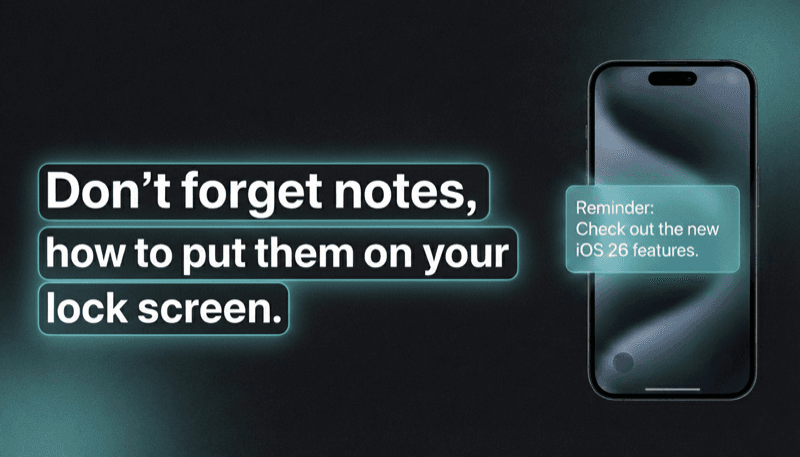
How to Show Reminders on iPhone Lock Screen (Without Notifications)
Want to see your tasks right on your lock screen? Learn how to display reminders on your iPhone lock screen without relying on notification banners.
Gratitude Journal on iPhone Lock Screen: A One-Sentence Habit
A gratitude journal on your iPhone lock screen makes the habit small enough to actually keep. Here's how to set it up so it lasts past week three.