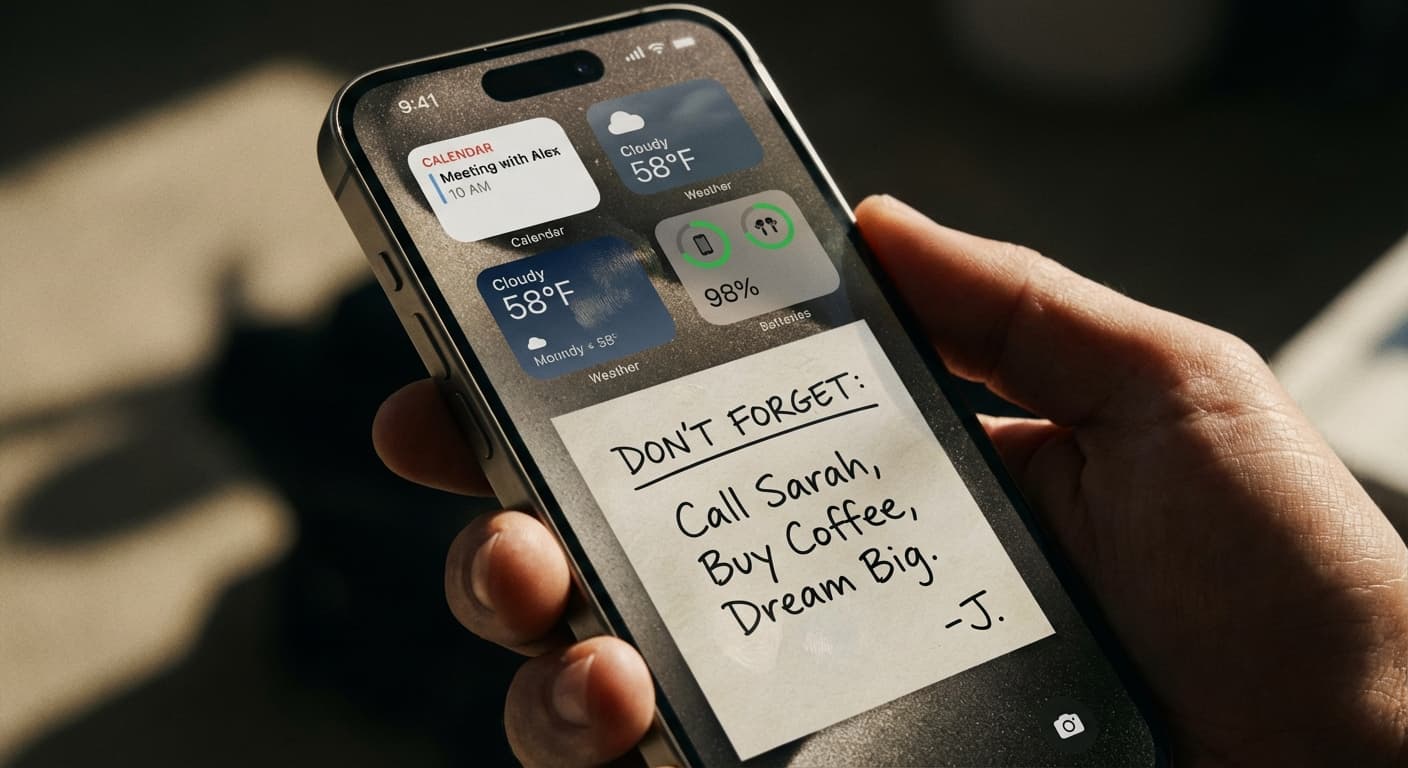
Quick Answer
While lock screen widgets offer quick glances at info, wallpaper notes with NoteWall provide constant, customizable reminders directly integrated into your background. For focused productivity, NoteWall is the clear winner.
The Lock Screen Battlefield: Widgets vs. Notes
Your iPhone lock screen is prime real estate. Studies show we glance at our phones an average of 352 times per day. That's 352 opportunities to be reminded of your goals, to-dos, or inspiring quotes. The question is: how do you make the most of it? The two main contenders are lock screen widgets and, the less conventional but far more powerful, wallpaper notes using an app like NoteWall.
Lock Screen Widgets: A Fleeting Glance
Lock screen widgets are convenient for checking the weather, tracking your fitness activity, or seeing upcoming calendar events. They offer a quick snapshot of information. However, they are limited in size, customization, and their dynamic nature can be distracting. You still need to actively look at them and process the information. Widgets don't passively influence you throughout the day. Plus, too many widgets clutter your lock screen! Widgets offer some value, but do they really help you stay focused?
Wallpaper Notes: Constant Reminders, Zero Effort
Imagine your to-do list, your daily affirmation, or your biggest goal subtly integrated into your lock screen wallpaper. That's the power of wallpaper notes. With NoteWall, you can create beautiful, minimalist notes that are always visible, subtly reinforcing your priorities every time you glance at your phone. No need to swipe, tap, or even consciously think about it. The message is always there, passively guiding your actions. This is why NoteWall is a game-changer.
Make every view count with NoteWall. Don't let those glances go to waste.
Pro tip: Use short, powerful phrases in NoteWall to maximize impact. Think: 'Crush It Today,' 'Focus on Revenue,' or 'Family First'. Download NoteWall here: NoteWall
The beauty of NoteWall is its simplicity. It's a set-it-and-forget-it solution that quietly transforms your lock screen into a productivity powerhouse.
**NoteWall**: The Only App You Need
There are other ways to add notes to your wallpaper, but none are as seamless, elegant, and customizable as NoteWall. NoteWall uses Apple Shortcuts to effortlessly apply your custom notes to your lock screen wallpaper. It's lightweight, user-friendly, and designed to enhance your focus, not distract you. Other apps simply don't offer this level of control and integration. Don't settle for less than the best! NoteWall offers unmatched simplicity and power.
⚠️ Key Point
NoteWall uses Apple Shortcuts for wallpaper changes. This means you need to allow permissions for the Shortcut to run. This is a standard iOS security measure, and NoteWall never collects your data.
- 1
Download NoteWall
from the App Store: NoteWall
- 2
Create your first note
in the app using our intuitive editor.
- 3
Customize the font, size, and position
to perfectly match your wallpaper.
- 4
Apply it to your lock screen
using the provided Apple Shortcut. Follow the simple on-screen instructions.
- •
Increased focus: Constant visual reminders of your goals.
- •
Improved productivity: Stay on track throughout the day.
- •
Reduced stress: Clear visibility of your to-do list.
- •
Enhanced motivation: Daily affirmations and inspiring quotes.
Keep Reading: If you found this helpful, check out these related guides:
iPhone Productivity App Comparison: Maximize Your Focus in 2024
NoteWall vs. Apple Reminders (2026): The Ultimate Task Management Showdown
Unlock Your iPhone's Potential: Custom Wallpapers with Notes for Peak Productivity
For a comprehensive overview, visit our Lock Screen Productivity Guide.
Ready to Transform Your Lock Screen?
Get **NoteWall** now and turn your wallpaper into a productivity powerhouse. Stop letting those hundreds of daily glances go to waste. Start focusing on what matters most!
Download NoteWall Free
Founder of NoteWall. Building tools that turn your lock screen into a productivity system. About →
You might also like
Unlock Productivity: How to Put Notes on Your iPhone Lock Screen
Want to see your notes, reminders, and goals every time you glance at your iPhone? Learn how to put notes on your iPhone lock screen for maximum productivity!
Gratitude Journal on iPhone Lock Screen: A One-Sentence Habit
A gratitude journal on your iPhone lock screen makes the habit small enough to actually keep. Here's how to set it up so it lasts past week three.
iPhone Journal App vs Lock Screen Notes: When to Use Each
Wondering whether to use an iPhone journal app or lock screen notes for daily reflection? They solve different problems. Here's an honest guide to which fits when.