Quick Answer
A good morning routine iPhone setup does one job: it makes the first thing you see push you into the day instead of into a feed. Set a wind-down the night before, a Focus that holds until you're ready, and a lock screen showing today's first event and your one priority — so the phone you'll grab anyway works for you, not against you.
What a Good Morning Routine iPhone Setup Actually Does
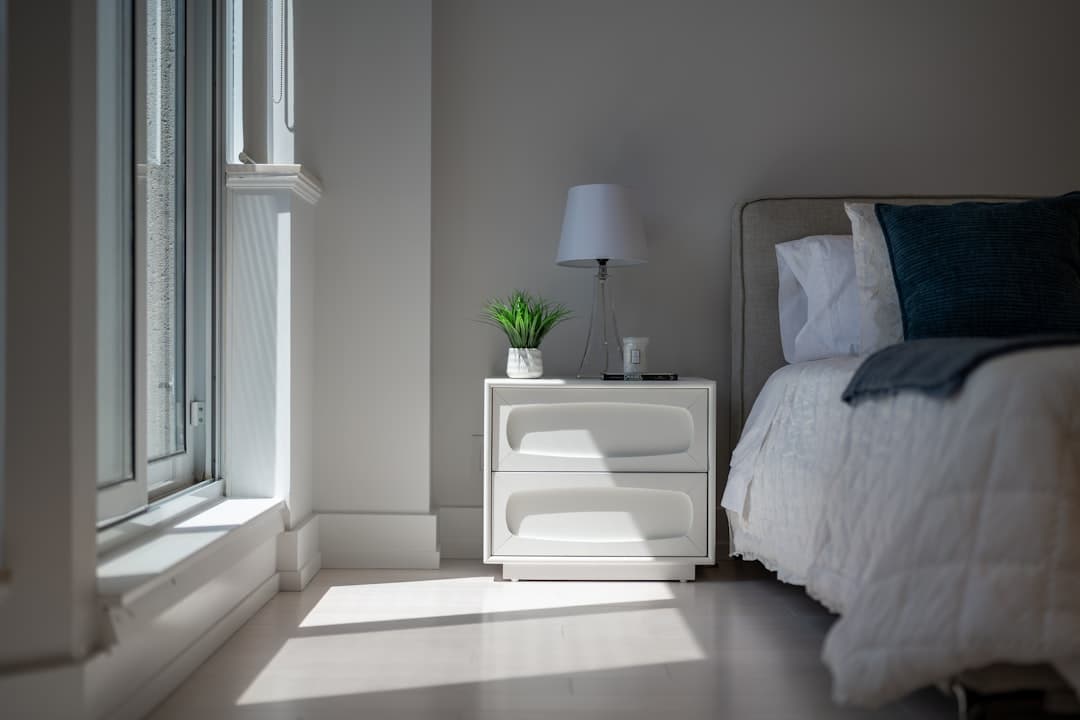
Most mornings start the same way: you reach for the phone before your feet hit the floor, and twenty minutes vanish into email and a feed before you've decided anything. A deliberate morning routine iPhone setup interrupts that autopilot. The goal isn't a rigid system of fifteen alarms — it's a handful of settings that make your phone's first impression a calm, useful one: what's on today, what matters most, and a gentle barrier between you and the apps that eat the hour. Done right, it takes about ten minutes to build and quietly pays off every single day.

Build Your Morning Routine iPhone Setup in 6 Steps
Build it once and it runs on its own. The order matters: a calm morning is mostly decided the night before.
- 1
Start the night before.
Create a 10 p.m. wind-down — Sleep Focus on, screen to its warmest tint, alarm set. Tomorrow's quiet morning is built tonight, not at 6 a.m.
- 2
Set a Focus that lingers past your alarm.
In Settings → Focus, schedule a Sleep or Personal Focus to stay on until, say, 8 a.m., hiding social and news badges so your first unlock is silent.
- 3
Build a 'good morning' lock screen.
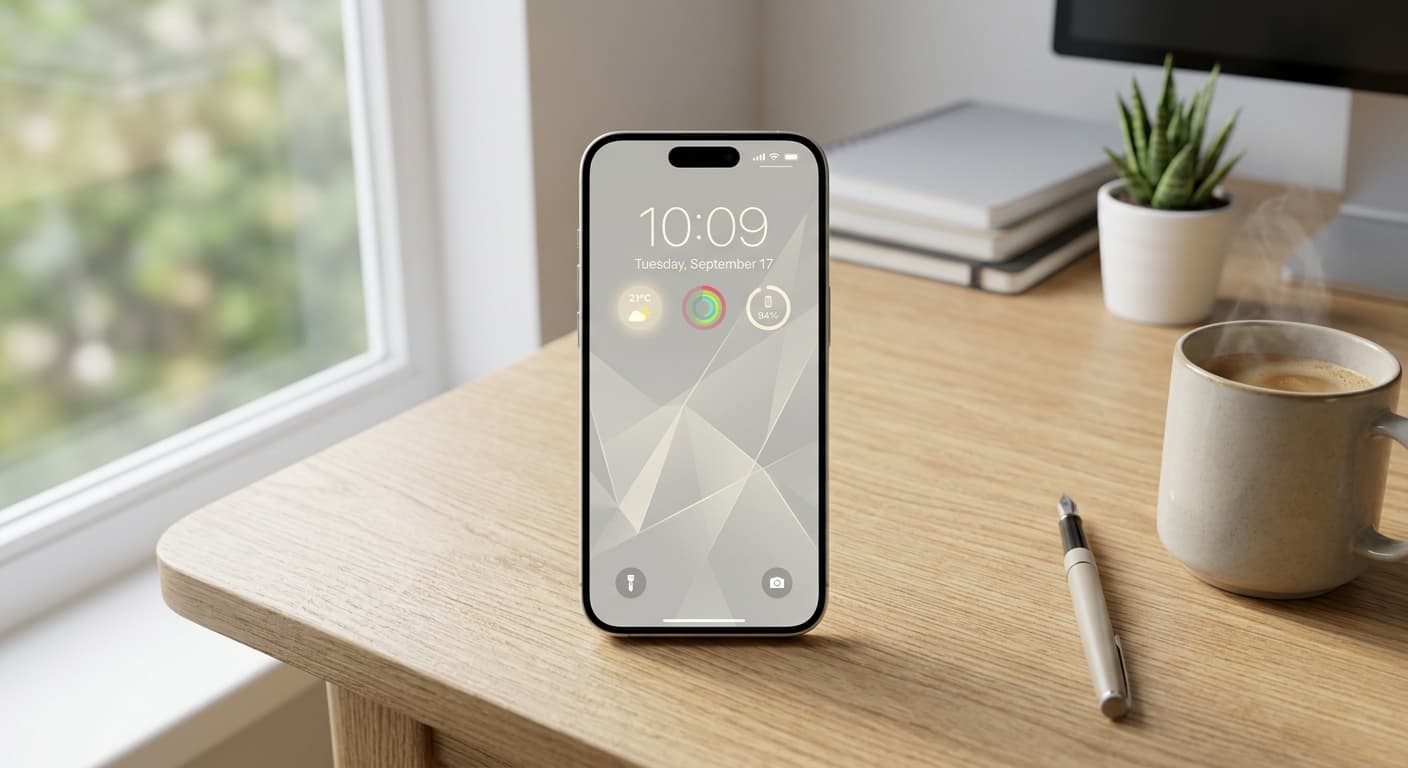
Long-press the lock screen → Customize, and add a Calendar (Up Next) widget and a Weather widget, so your first event and the forecast are there before you tap anything.
- 4
Put today's one priority in front of your face.
Above the widgets, keep a single line — the one thing that makes today a win. This is the piece iOS doesn't handle well on its own (more on that below).
- 5
Add a one-tap launch for what you actually want to do first.
A Shortcut that opens your journal, starts a playlist, or reads your morning brief — our iPhone automation ideas cover trigger-based versions that fire on their own.
- 6
Delay the feed.
Move social and news apps off your first home screen, or set an App Limit that doesn't lift until 9 a.m. The harder they are to reach, the less the morning leaks away.
IDC's 'Always Connected' study found roughly 80% of smartphone users reach for their phone within 15 minutes of waking — many before they're even out of bed. The morning grab is close to universal, so the only real choice is what that first screen shows you.
That figure, from IDC's research, reframes the whole problem. You're not going to out-discipline the morning phone-grab — it's nearly universal. What you can control is what greets you when you give in. A morning routine iPhone setup wins by making that first screen answer "what matters today?" instead of "what did you miss?" If digital overwhelm is the deeper issue, our guide to digital minimalism on iPhone goes further.
You won't beat the morning phone-grab with willpower. Win it by changing what the grab shows you — a priority and a plan, not a feed and a backlog.
Use StandBy or the Lock Screen as a Morning Dashboard
If you charge your phone on the nightstand, StandBy mode turns those first waking seconds into a glanceable dashboard — clock, next alarm, calendar, weather — without unlocking. No charger by the bed? The lock screen does the same job. Either way, keep it to four things at most: the time, today's first event, the weather, and your one priority. Anything more and you're back to scanning, which is the exact habit you're trying to break.
💡 Tip
Make the phone leave the bedroom. The single highest-leverage morning move is charging it across the room — or outside the door — overnight. A wind-down Focus and a cheap alarm clock cover the rest. When the phone isn't within arm's reach, the grab (and the feed behind it) simply doesn't happen.

Here's the honest catch with everything above: a real morning setup is a chain — a wind-down automation, a scheduled Focus, lock-screen widgets, an App Limit, and a daily edit to whatever shows your top priority. That's five systems to build and, worse, to keep in sync as life changes. And the one piece that matters most — today's single priority, in your own words — is exactly the piece iOS makes hardest, because widgets pull from apps, not from you. That's where NoteWall fits: you write tomorrow's one line straight onto your lock screen the night before, in about five seconds, and wake up to it already there — no automation to maintain, no app to open.
Morning Setup Mistakes That Send You Straight to a Feed
- •
Keeping the phone on the nightstand. If it's in reach, you'll grab it on autopilot. Distance is the cheapest, most effective setting there is.
- •
Letting notifications pile up overnight. A lock screen stacked with twenty badges at 7 a.m. drops you straight into reaction mode. Use a Focus that holds them until you're ready to look.
- •
Cramming the lock screen. Six widgets and a quote you stopped reading is just noise. Four things, max — the ones that shape your next hour.
- •
Setting a priority once and never updating it. A 'today's focus' line stuck on last Tuesday trains you to ignore it. The fix is making the update trivial — five seconds, like editing a NoteWall line at night — so it's always current.
- •
Opening 'just one' app. Email and social are built to keep you. Delay them past 9 a.m. so the first hour belongs to you, not your inbox. Our Do Not Disturb setups help enforce it.
Frequently Asked Questions
What's the best morning routine iPhone setup?
Start with a 10 p.m. wind-down and a Sleep Focus that holds past your alarm, then build a simple lock screen showing today's first event, the weather, and your single priority. Add a one-tap Shortcut for whatever you want to do first, and delay social apps until 9 a.m. Keep it to a few settings you'll actually maintain.
Why shouldn't I check my phone first thing in the morning?
Opening email or social first hands your attention to other people's agendas before you've set your own, and it kicks off the reactive, scattered feeling that's hard to shake all day. The fix usually isn't quitting cold turkey — it's changing what you see first, so the grab gives you a plan instead of a backlog.
How do I stop checking social media when I wake up?
Make it harder than reaching: move the apps off your first home screen, set an App Limit that doesn't lift until later morning, and charge your phone across the room so grabbing it takes a deliberate step. It also helps to replace the habit — a calm lock screen with your day's priority gives your eyes somewhere better to land.
Should I use StandBy mode for my morning routine?
If you charge your phone on a nightstand or desk, yes — StandBy turns it into a glanceable clock-and-calendar dashboard you can read without unlocking, which cuts the pick-up-and-scroll reflex. If you'd rather keep the phone out of the bedroom entirely, skip StandBy and lean on a wind-down Focus plus a regular alarm clock.
Can I put my morning priority on the lock screen for free?
Partly. iOS lets you add Calendar, Weather, and Reminders widgets to the lock screen at no cost, which covers events and tasks. What it doesn't do well is show a free-form line in your own words — for that, a wallpaper-notes app like NoteWall writes the text onto the wallpaper itself so it's the first thing you see.
Keep Reading: iPhone StandBy Mode Productivity Tips · iPhone Automation Ideas 2026 · Digital Minimalism iPhone Tips · Lock Screen Productivity — Pillar Guide
Photos by Franco Debartolo, Polina Kuzovkova, and Irwan on Unsplash.
Wake Up to Your Priority, Not Your Inbox
The hardest part of a morning iPhone setup is keeping today's one priority on screen and current — widgets can't do it, and re-editing a wallpaper gets old fast. NoteWall lets you write tomorrow's line onto your lock screen tonight in five seconds, so it's the first thing you see.
Download NoteWall Free
Founder of NoteWall. Building tools that turn your lock screen into a productivity system. About →
You might also like
Unlock Focus: Master Your Minimalist iPhone Lock Screen with iOS 19/20
Transform your iPhone lock screen into a minimalist powerhouse with iOS 19/20. Boost focus, reduce distractions, and enhance digital well-being in 2026.
Unlock Productivity: How to Put Notes on Your iPhone Lock Screen
Want to see your notes, reminders, and goals every time you glance at your iPhone? Learn how to put notes on your iPhone lock screen for maximum productivity!
Unlock Your iPhone Potential: Create a Personalized Lock Screen
Transform your iPhone lock screen into a personalized hub for motivation and organization. Learn how to customize your lock screen with widgets, photos, and more!