Quick Answer
Live Activities for reminders on iPhone are the small interactive widgets that live on your lock screen and Dynamic Island while something is actively happening — a timer running, an order arriving, a workout in progress. They're great for time-bounded events and a poor fit for the everyday 'don't forget this' reminders most people want. Knowing the difference saves a lot of friction.
What Live Activities for Reminders on iPhone Actually Are
Live Activities for reminders on iPhone launched with iOS 16.1 in late 2022 and have quietly become one of the most underused features Apple shipped that year. A Live Activity is a small, persistent widget that appears on the lock screen and Dynamic Island while something is actively in progress — your Uber heading to the address, a 25-minute Pomodoro timer counting down, a sports score updating in real time. They're not notifications you swipe away; they sit on the screen, update themselves, and disappear when whatever they're tracking ends. The thing most people get wrong: Live Activities are designed for ongoing events, not for the static 'remember to call Mom' style of reminder that most people want.
Per Apple's Live Activity guidelines, a Live Activity can run for up to 8 hours total — 4 hours in active state plus another 4 in 'ending' state — before iOS automatically dismisses it. That's the engineering reason Live Activities suit time-bounded events and don't replace a standing reminder.
That 8-hour ceiling is the whole reason this distinction matters. A Live Activity is built for things with a defined start and end: a timer, a delivery ETA, a flight, a workout. It can't be your standing 'drink water' or 'feed the cat at 6pm' nudge — iOS will quietly retire it long before the day is over. Knowing this up front saves you from setting up a feature for a job it was never designed to do.

Which iPhone Apps Actually Support Live Activities in 2026
The list of apps with quality Live Activity support is shorter than the App Store marketing suggests. Honest assessment of what actually works for reminder-shaped tasks today:
- •
Apple Reminders (built-in). Apple's own Reminders app does not surface tasks as Live Activities — only timers and a handful of system events get the Dynamic Island treatment. This catches almost everyone off guard. Reminders still notify you the old way (banner alerts, lock-screen entries below the clock), just not as Live Activities.
- •
Apple Clock — Timer. The single best out-of-the-box Live Activity. Start a kitchen timer or Pomodoro session and the countdown shows live on the lock screen and in the Dynamic Island, with one tap to pause or extend. Best if you live by timers.
- •
Things 3. Has a 'Today' Live Activity that surfaces your top tasks. Implementation is clean — Things uses the Live Activity slot to mirror today's list, not to fire individual task alarms. Best if you already use Things and want a glance-at-lock-screen layer.
- •
Structured. Shows your current and next time block as a Live Activity. Useful for time-blocked days; less useful if your plan is fluid. Best if you actually schedule your day in blocks.
- •
TickTick. Live Activity for active Pomodoro sessions and focus timers. Doesn't expose general tasks as Live Activities. Best if you want timer + task in one app.
- •
Delivery apps (DoorDash, Uber, USPS, FedEx, Amazon). Some of the strongest Live Activity implementations on the platform — the order ETA updates in real time on your lock screen. Not technically 'reminders,' but solves the same 'don't make me unlock my phone to check' problem.
How to Enable Live Activities on iPhone
- 1
Check your iOS version.
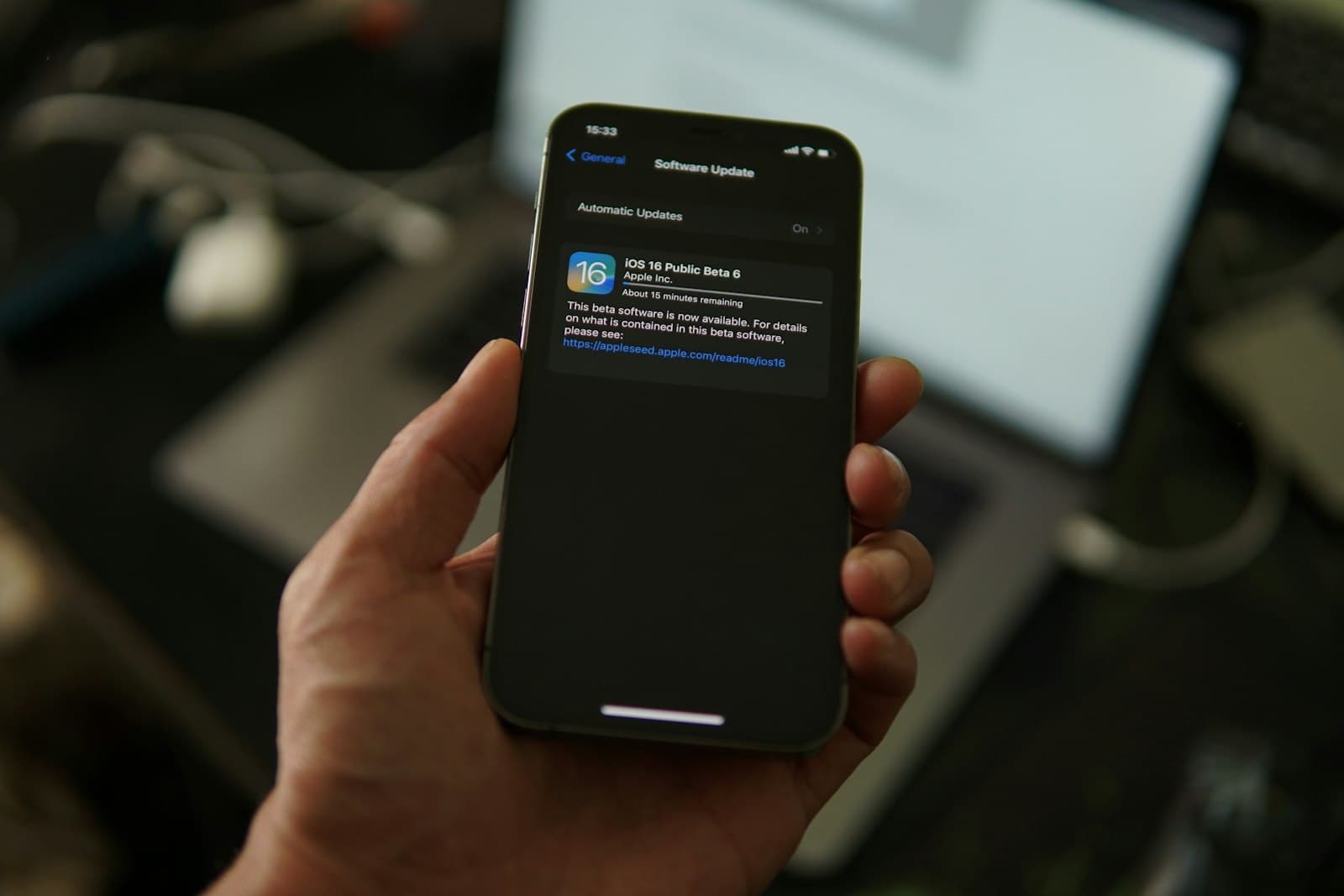
Live Activities require iOS 16.1 or later. Settings → General → Software Update — if you're on 16.0, update first.
- 2
Turn on the system-wide toggle.
Settings → Face ID & Passcode (or Touch ID & Passcode) → scroll to 'Allow Access When Locked' → ensure 'Live Activities' is on. If this is off, no Live Activity will appear on your lock screen, regardless of app settings.
- 3
Enable per-app permissions.
Settings → [App name] → ensure 'Live Activities' is toggled on. Each app you want using Live Activities needs its own permission. Apple Clock's timer is on by default; third-party apps usually require flipping the switch.
- 4
Start something time-bounded.
Open Clock, start a Timer, and lock your phone. The countdown should appear on the lock screen and (on iPhone 14 Pro and later) in the Dynamic Island. This is your sanity check — if it doesn't show, revisit step 2.
- 5
Long-press to interact.
On the lock screen, long-press a Live Activity to pause, dismiss, or open the parent app. On the Dynamic Island, long-press to expand into the larger compact view.
💡 Tip
Don't try to make every app a Live Activity. When five apps are competing for the lock-screen Live Activity slot, iOS picks the most recent one and hides the rest. The feature works best when you reserve it for one or two genuinely time-bounded things — a timer, an active delivery, an ongoing workout — and let your standing reminders live elsewhere.

Where Live Activities for Reminders Fall Short
Here's the part Apple's marketing skips over. Live Activities have three structural limits that make them a poor fit for the everyday reminders most people want. First, the 8-hour ceiling means they can't carry a standing 'today' message all day. Second, they only appear when an app explicitly starts one — there's no way to manually pin a reminder as a Live Activity. Third, they compete for a single lock-screen slot, so a second Live Activity pushes the first one off the screen. None of this is a bug; Live Activities were built for live events, not durable reminders. But it means the gap between 'I want my task visible all day' and 'Live Activities exist' is wider than it looks at first glance.
This is where the lock-screen wallpaper layer steps in for the part Live Activities can't cover. NoteWall puts a static, all-day note directly on your wallpaper — 'Call Mom · Pick up Rx · Sub Q3 budget' — that survives the 8-hour ceiling, doesn't compete for a Live Activity slot, and is visible every time you pick up your phone. Use Live Activities for the time-bounded things (a 25-min Pomodoro, a UPS delivery, a flight). Use NoteWall for the standing ones (today's top three tasks, this week's deadline, the medication you keep missing). Two surfaces, two jobs.
Layer Live Activities With Your Lock Screen Wallpaper
The strongest reminder setup uses both surfaces — each for what only it can do. Live Activities own the real-time layer; the lock-screen wallpaper owns the standing layer. Together they cover the full day; alone, neither one does:
- •
Live Activities → time-bounded events. Pomodoro timers, kitchen timers, deliveries, workouts, flights. Anything with a clear end. Limit yourself to one active Live Activity at a time so iOS doesn't have to pick one to hide.
- •
Wallpaper note → today's standing list. Use NoteWall to keep three or four durable items on your lock screen all day: top tasks, a weekly deadline, a habit cue. The same approach we cover in how to put reminders on the lock screen — only it doesn't time out.
- •
Apple Reminders → the backing list with alerts. Keep the full, structured list in Reminders for capture, recurrence, and location/time-based alerts. The wallpaper note is the headline; Reminders holds the depth.
- •
Focus mode → silences the rest. Pair a Live Activity (running timer) with a matching Focus mode that hides everything not on the allow-list. See iPhone Focus mode hacks for full setups.
- •
Always-on display (iPhone 14 Pro+) → makes the wallpaper note glanceable without lifting the phone. This is when the layered setup feels effortless — the standing note is just there, and the Live Activity appears beside it only when a timer is running.
⚠️ When Not to Use Live Activities
Don't reach for Live Activities for: recurring daily reminders (use Reminders + a wallpaper note), grocery lists or to-dos (use Reminders + Lock Screen widgets), medication schedules (use Reminders with critical alerts), or anything that needs to be visible for more than ~8 hours. Trying to force Live Activities into these jobs leads to flicker, missed prompts, and the frustration that makes people turn the feature off entirely.
Common Mistakes to Avoid
- •
Expecting Apple Reminders to show as Live Activities. It doesn't, and probably won't. Apple uses Live Activities for system timers and a handful of native events — not for individual to-do items.
- •
Running three Live Activities at once. iOS will hide all but the most recent. If three matter to you at once, the feature isn't the right surface — that's the lock screen's job, not Live Activities'.
- •
Forgetting the per-app permission. A timer that doesn't appear is almost always a per-app toggle that's off. Settings → [App] → Live Activities is the first place to check.
- •
Disabling the lock-screen system toggle to 'quiet' notifications. This is the toggle that controls Live Activities too. Turn it off and everything Live-Activity-shaped disappears, including the helpful ones.
- •
Treating Live Activities as a replacement for a productivity system. They're a display layer for things happening right now. The actual reminder still lives in Reminders, your planner, or your wallpaper note — Live Activities just surface it during the active window.
Frequently Asked Questions
What are Live Activities for reminders on iPhone?
Live Activities are small persistent widgets that appear on your lock screen and Dynamic Island while something is actively happening — a timer, a delivery, a workout. They're built for time-bounded events with a clear end, not for standing daily reminders. Apple Reminders itself doesn't currently surface tasks as Live Activities.
How do I turn on Live Activities on my iPhone?
Settings → Face ID & Passcode → ensure 'Live Activities' under 'Allow Access When Locked' is on. Then enable Live Activities per app under Settings → [App name]. Start a timer in Clock to confirm the feature works on your lock screen and Dynamic Island.
Why don't my reminders show as Live Activities?
Because Apple Reminders doesn't expose tasks as Live Activities — only timers and certain native events get that treatment. Third-party apps like Things 3 and TickTick offer Live Activity views for tasks and focus sessions, but the system-level setup expects time-bounded events, not static reminders.
How long does a Live Activity stay on my lock screen?
Apple's guidelines cap a Live Activity at 8 hours total — 4 hours in active state plus 4 in 'ending' state — before iOS dismisses it. That's why Live Activities suit time-bounded events and don't work as all-day standing reminders. For those, use a lock-screen wallpaper note instead.
What's the best alternative for standing all-day reminders?
A static lock-screen wallpaper note. Apps like NoteWall let you put today's top items on the wallpaper itself, so they don't time out, don't compete with Live Activities for a slot, and are visible every time you glance at your phone — exactly the job Live Activities weren't built for.
Keep Reading: How to Put Reminders on Lock Screen iPhone · iOS 18 Lock Screen Features · iPhone Focus Mode Productivity Hacks · iOS Tips & Automation — Pillar Guide
Photos by Azamat E, Nathan Dumlao, and Glenn Villas on Unsplash.
The All-Day Layer Live Activities Can't Cover
Live Activities time out in 8 hours. NoteWall puts today's three standing items on your lock screen for the rest of the day — no timer, no Dynamic Island slot to compete for. Free to start.
Try NoteWall Free
Founder of NoteWall. Building tools that turn your lock screen into a productivity system. About →
You might also like
How to Put Reminders on Lock Screen iPhone: The Ultimate Guide
Learn how to put reminders on your lock screen iPhone for maximum productivity! See your to-do list every time you glance at your phone. Use NoteWall!
How to Show Reminders on iPhone Lock Screen (Without Notifications)
Want to see your tasks right on your lock screen? Learn how to display reminders on your iPhone lock screen without relying on notification banners.
Gratitude Journal on iPhone Lock Screen: A One-Sentence Habit
A gratitude journal on your iPhone lock screen makes the habit small enough to actually keep. Here's how to set it up so it lasts past week three.