Quick Answer
Yes, iPhone task management without apps is possible! Leverage Reminders, Notes, Calendar, and clever lock screen tricks. Combine built-in tools for effective task tracking and boosted productivity. Simplify your workflow and declutter your digital life. Plus, consider tools that integrate with your phone's ecosystem for maximum efficiency.
The Power of Built-In iPhone Features
Your iPhone comes loaded with surprisingly powerful tools for task management. Many users overlook these gems, opting for third-party apps when the solutions are already at their fingertips. Let's explore how to harness these features for effective iPhone task management without apps.
Reminders: Your Central Command
The Reminders app is a robust tool for creating and managing tasks. Set deadlines, prioritize tasks, and create lists for different projects. The ability to set location-based reminders is incredibly useful – imagine getting a reminder to buy milk when you're near the grocery store! The simple interface and iCloud sync make it easily accessible across all your Apple devices. Make sure to explore the 'Smart Lists' features too, which can automatically group and prioritize reminders based on tags, dates or location. For iphone task management without apps, the Reminders App is a must.
Pro tip: Use the 'Share List' function in Reminders to collaborate on projects with family, friends, or colleagues.
Notes: More Than Just Text
The Notes app is another underutilized resource. Create checklists within notes, jot down ideas, and even scan documents directly into the app. You can organize your notes into folders for better management. Consider using color-coding to visually differentiate between project notes. While primarily for information, Notes are excellent for brainstorming and outlining action items you can then transfer to Reminders.
Combine Reminders and Notes for a potent productivity boost. Use Notes to plan, then Reminders to execute.
Calendar: Time Blocking for Success
Time blocking is a powerful productivity technique where you schedule specific blocks of time for specific tasks. Use the Calendar app to allocate time for focused work, meetings, and personal activities. This helps you visualize your day and avoid overcommitting. Color-code your events for quick visual cues. Consider using a recurring event for daily routines to ensure consistency.
Every view is an opportunity to reinforce your goals.
⚠️ Don't Neglect Notifications!
Configure your notification settings carefully. Too many notifications can be distracting, but too few can cause you to miss important deadlines. Find the sweet spot for each app.
The Lock Screen Advantage: Subtle Reminders
Did you know your iPhone lock screen can be prime real estate for subtle task reminders? Users glance at their lock screens up to 352 times per day! That's a lot of potential for reinforcement. While you can't directly manage tasks on the lock screen without widgets (which technically are app extensions), you can leverage it strategically. Use a motivational wallpaper with a clear goal, or a simple text reminder of your top priority for the day.
One great trick for simple iPhone task management without apps is to create a custom wallpaper with your daily tasks or a motivational quote. While iOS doesn't natively let you display your Reminders, this visual cue is incredibly effective. This method works because you're using the power of repetition and subconscious cues to keep you on track. You can easily design these in any photo editing app.
Transform your lock screen into a personalized dashboard with visual reminders and motivational cues.
Alternatively, consider tools like NoteWall, which leverages Apple Shortcuts to dynamically update your lock screen wallpaper with notes, goals, and reminders. It intelligently integrates with the systems you already know, giving you the benefit of seeing your reminders, without adding to your 'app clutter'. You still get the advantage of keeping everything in one ecosystem.
- 1
Step 1:
Open Photos App and create a blank image using markup.
- 2
Step 2:
Add your task to the image using text. Make it clear and concise.
- 3
Step 3:
Save the image.
- 4
Step 4:
Set it as your lock screen wallpaper.
Embrace the Power of Integration
Even though you're focused on iPhone task management without apps, remember that the true power lies in integration. Use Siri shortcuts to quickly add tasks to Reminders. Link notes to calendar events for contextual information. The more you connect these built-in features, the more efficient your workflow will become.
Keep Reading: If you found this helpful, check out these related guides:
Lock Screen To-Do Lists in 2026: Unlock Peak Productivity (Without Unlocking Your Phone!)
Mastering iPhone Shortcuts: Automation Tips for a Smarter Life
iPhone Goal-Setting 2.0: 5 Clever Tricks to See Goals Every Day (2026)
For a comprehensive overview, visit our Lock Screen Productivity Guide.
Transform Your iPhone
Get NoteWall today and never forget a note, goal or reminder!
Download NoteWall Free
Founder of NoteWall. Building tools that turn your lock screen into a productivity system. About →
You might also like
Gratitude Journal on iPhone Lock Screen: A One-Sentence Habit
A gratitude journal on your iPhone lock screen makes the habit small enough to actually keep. Here's how to set it up so it lasts past week three.
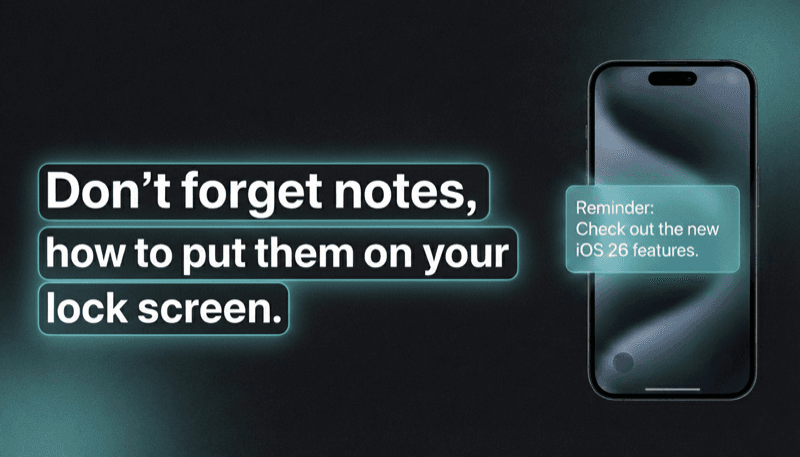
How to Show Reminders on iPhone Lock Screen (Without Notifications)
Want to see your tasks right on your lock screen? Learn how to display reminders on your iPhone lock screen without relying on notification banners.

8 Lock Screen Ideas for Students Worth Trying This Semester
Turn the screen you check most into a study tool. These 8 lock screen ideas for students put deadlines, schedules, and focus where you can't scroll past them.