Quick Answer
iOS Shortcuts let you automate tasks on your iPhone and iPad, saving you time and boosting your productivity. Combine them with apps like NoteWall to keep important information visible on your lock screen!
The Power of iOS Shortcuts for Productivity
In today's fast-paced world, efficiency is key. We're constantly looking for ways to streamline our routines and maximize our time. Apple's Shortcuts app offers a powerful solution: automation. By creating custom workflows, you can eliminate repetitive tasks, access information quickly, and ultimately, unlock peak productivity. The beauty of Shortcuts lies in its simplicity. Even without coding experience, you can design workflows to fit your specific needs.
Think about how many times you reach for your phone each day. Studies show that the average person checks their phone up to 352 times a day! Imagine if, instead of aimlessly scrolling, you were greeted with your daily goals or a crucial reminder. That's where the synergy between iOS Shortcuts and apps like NoteWall comes in.
Getting Started with iOS Shortcuts
If you're new to Shortcuts, don't worry! It's designed to be user-friendly. Here's a step-by-step guide to creating your first shortcut:
Open the Shortcuts app on your iPhone or iPad.
Tap the '+' button to create a new shortcut.
Use the search bar to find actions you want to include in your workflow (e.g., 'Get Current Weather', 'Send Message', 'Set Volume').
Drag and drop actions to arrange them in the desired order.
Configure each action by providing the necessary information (e.g., location for weather, recipient and message for sending a text).
Tap the settings icon (top right) to name your shortcut and choose an icon.
Test your shortcut by tapping the play button.
Once you've mastered the basics, you can explore more advanced features like variables, conditional statements, and loops to create more complex and powerful automations.
Practical Examples: Level Up Your Workflow
Let's dive into some real-world examples of how you can use iOS Shortcuts for productivity:
- •
Morning Routine: Create a shortcut that silences notifications, plays your favorite music, and displays your daily schedule.
- •
Travel Assistant: Build a shortcut that automatically checks flight status, finds nearby restaurants, and translates common phrases.
- •
Meeting Prep: Automate the process of gathering relevant documents, setting a timer, and notifying attendees.
- •
Quick Notes: Dictate a quick note and have it automatically saved to your preferred notes app.
These are just a few ideas to get you started. The possibilities are endless! Think about the tasks that you do most frequently and how you can automate them using Shortcuts.
NoteWall + Shortcuts: A Powerful Combination
Now, let's talk about how NoteWall can amplify the effectiveness of your iOS Shortcuts for productivity. NoteWall allows you to display important notes, goals, and reminders directly on your lock screen wallpaper. This means you'll see them every time you glance at your phone – which, as we mentioned, could be almost 500 times a day!
You can integrate NoteWall with Shortcuts to dynamically update your wallpaper based on certain triggers. For example, you could create a shortcut that updates your NoteWall wallpaper with your daily to-do list every morning. Or, you could have a shortcut that changes your wallpaper to display an inspirational quote whenever you feel stressed.
This combination ensures that your most important information is always front and center, helping you stay focused and motivated throughout the day. It's a fantastic way to use ios shortcuts for productivity by making your lock screen a powerful tool.
Advanced Tips and Tricks
- •
Use the 'Dictate Text' action: This allows you to create shortcuts that take voice input, making it even easier to automate tasks on the go.
- •
Explore the 'Get Contents of URL' action: This action opens up a world of possibilities by allowing you to fetch data from the web and use it in your shortcuts.
- •
Share your shortcuts: If you create a particularly useful shortcut, share it with your friends and colleagues!
- •
Use widgets: Add your most used shortcuts to your home screen as widgets for even faster access.
Mastering ios shortcuts for productivity is an ongoing journey. Experiment, explore, and don't be afraid to try new things. The more you use Shortcuts, the more creative you'll become in finding ways to automate your life and reclaim your time. And remember to use NoteWall to keep your most important information visible and accessible. You will truly start to benefit from ios shortcuts for productivity when you make key information like notes and to-dos visible throughout the day.
Keep Reading: If you found this helpful, check out these related guides:
Lock Screen To-Do Lists in 2026: Unlock Peak Productivity (Without Unlocking Your Phone!)
Unlocking Peak Efficiency: Master iPhone Shortcuts Automation in 2026
Unleash Peak Performance: The Ultimate iOS Productivity Hacks for 2026
For a comprehensive overview, visit our iOS Tips & Automation.
Stay Organized and Focused with NoteWall
Ready to boost your productivity and keep your goals top of mind? Download NoteWall today and start displaying your notes, reminders, and goals on your lock screen wallpaper!
Download NoteWall Free
Founder of NoteWall. Building tools that turn your lock screen into a productivity system. About →
You might also like

8 Lock Screen Ideas for Students Worth Trying This Semester
Turn the screen you check most into a study tool. These 8 lock screen ideas for students put deadlines, schedules, and focus where you can't scroll past them.
Unlock Productivity: The Best Lock Screen Apps for iPhone
Transform your iPhone's lock screen into a productivity powerhouse! Discover the best lock screen apps to boost focus and achieve your goals. Get more done!
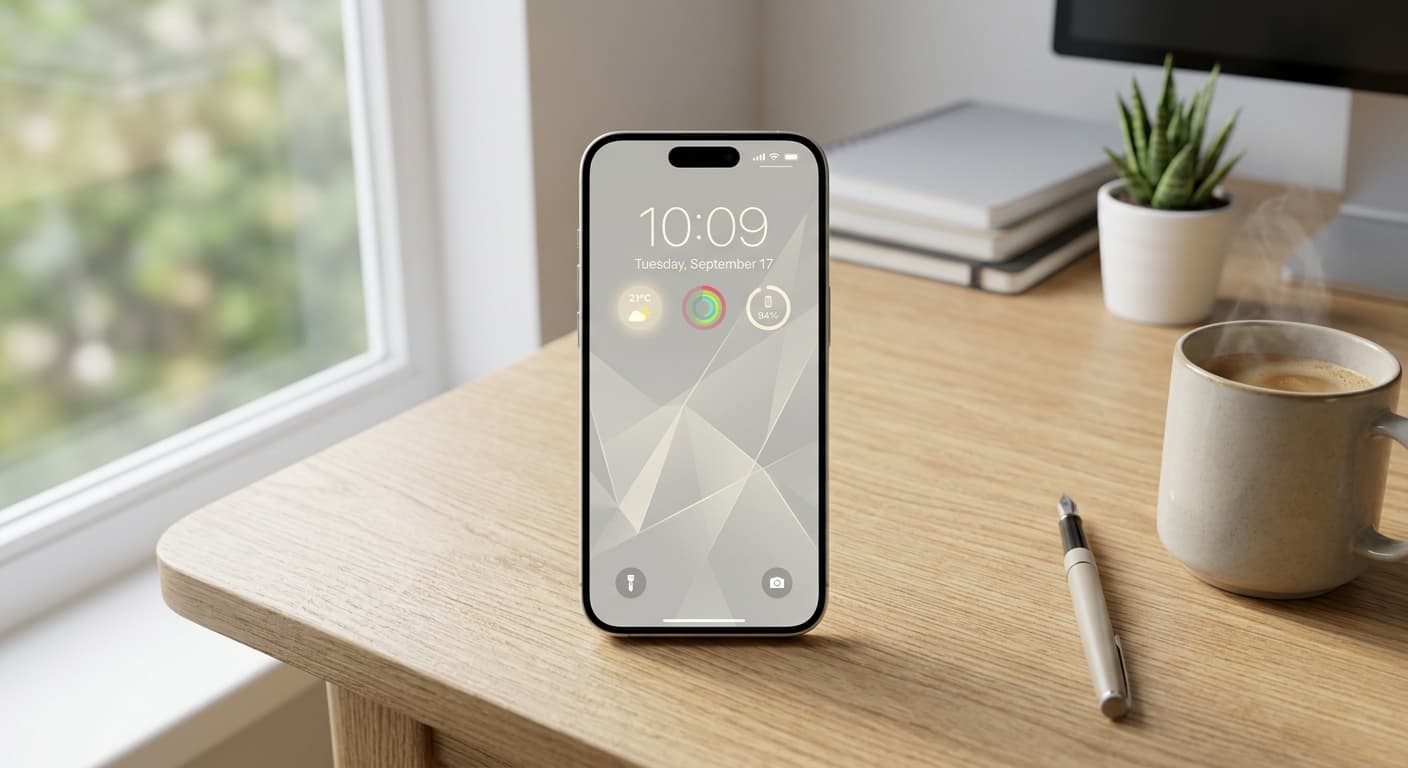
Unlock Focus: Master Your Minimalist iPhone Lock Screen with iOS 19/20
Transform your iPhone lock screen into a minimalist powerhouse with iOS 19/20. Boost focus, reduce distractions, and enhance digital well-being in 2026.