Quick Answer
Boost your college productivity using your iPhone with time management apps, focus modes, and smart organization tricks. Consider using NoteWall to put your goals right on your lock screen – where you'll see them hundreds of times a day.
The College Productivity Challenge: Conquer It With Your iPhone
College life is a whirlwind of lectures, study sessions, extracurricular activities, and social events. Staying on top of everything can feel overwhelming. Luckily, your iPhone is a powerful tool that can help you conquer the college productivity challenge. But it's not enough to just have an iPhone; you need to use it strategically. Let's dive into some actionable strategies to transform your iPhone into your ultimate productivity companion.
Tip 1: Master Time Management with Your iPhone
Time is your most valuable resource in college. Effective time management is crucial for balancing academics, personal life, and everything in between. Your iPhone has several built-in features and apps that can help you become a time management pro.
- •
Calendar: Use the built-in Calendar app to schedule classes, study sessions, appointments, and deadlines. Color-code events for easy visual organization.
- •
Reminders: Create reminders for assignments, exams, and important tasks. Set due dates and priorities to stay on track.
- •
Clock: Utilize the Timer and Alarm features to manage study blocks and breaks effectively. The Stopwatch can also be useful for tracking how long certain tasks take.
Beyond the basics, explore advanced features like shared calendars for group projects or using Siri to quickly add events and reminders. Consider exploring third-party apps like Todoist or TickTick for more robust task management capabilities if you need them. These apps can help you break down larger tasks into smaller, manageable steps, further enhancing your college productivity tips iphone strategy.
Tip 2: Minimize Distractions and Maximize Focus
Distractions are productivity killers. Your iPhone, while a helpful tool, can also be a major source of interruptions. Learn to control your notifications and minimize distractions to maximize your focus. On average, users see their lock screen up to 352 times per day. Imagine if even a small percentage of those views reminded you of your goals!
- •
Focus Modes: Apple's Focus modes are a game-changer. Create custom Focus modes for studying, working on projects, or attending lectures. Configure these modes to silence notifications from specific apps and contacts.
- •
Do Not Disturb: Use Do Not Disturb mode when you need complete silence. Schedule it automatically during class hours or study sessions.
- •
Notification Management: Review your app notifications and disable those that are unnecessary or distracting. Reduce notification badges to minimize visual clutter.
For example, during study time, create a "Study" Focus mode that only allows notifications from essential apps like your calendar or study timer. You can also enable "Silence Unknown Callers" to avoid unwanted phone calls during focused work. Consider adding a reminder on your lock screen – this is where NoteWall shines. Set up a shortcut to change your wallpaper to a motivational quote, or a list of your goals for the week, ensuring you see it every time you pick up your phone.
Tip 3: Organize Your Digital Life
A cluttered digital space leads to a cluttered mind. Organize your files, apps, and notes on your iPhone to improve efficiency and reduce stress.
- •
Folders: Create folders on your home screen to group similar apps together. For example, create a "Study" folder for all your academic apps.
- •
Files App: Utilize the Files app to store and organize documents, PDFs, and other files. Sync it with iCloud Drive for easy access across devices.
- •
Notes App: Use the Notes app to jot down ideas, create to-do lists, and take class notes. Organize your notes into folders and use tags for easy searching.
Take advantage of features like shared notes for collaborative projects. Consider using cloud storage services like Google Drive or Dropbox for backing up important files and accessing them from any device. A well-organized digital life contributes significantly to overall college productivity tips iphone success.
Tip 4: Optimize Your Lock Screen for Productivity
Since you look at your lock screen dozens, if not hundreds, of times a day, it's prime real estate for productivity boosts. Think beyond just the time and date.
- •
Widgets: Use lock screen widgets to display important information like your calendar events, reminders, or the weather.
- •
Custom Wallpapers: Set a motivational wallpaper or a visual reminder of your goals. This can be a simple image with a positive message or a schedule of your day.
- •
NoteWall App: Utilize NoteWall to display notes, goals, and reminders directly on your lock screen wallpaper. This ensures that you see your priorities every time you check your phone.
NoteWall leverages Apple Shortcuts to automatically update your wallpaper with your personalized notes, helping you stay focused and motivated throughout the day. It's a subtle yet powerful way to integrate productivity into your daily routine. Instead of mindlessly scrolling through social media, you'll be greeted by a reminder of what's important, helping refine your college productivity tips iphone usage.
Keep Reading: If you found this helpful, check out these related guides:
Unlock Your Potential: The Best iOS Productivity Tips for 2025
Mastering iPhone Shortcuts: Automation Tips for a Smarter Life
Unlock Your Potential: Passive Productivity Tricks for Your iPhone
For a comprehensive overview, visit our Lock Screen Productivity Guide.
Transform Your iPhone Into a Productivity Powerhouse
Ready to take control of your time and achieve your college goals? Download NoteWall and start optimizing your lock screen today!
Download NoteWall Free
Founder of NoteWall. Building tools that turn your lock screen into a productivity system. About →
You might also like
8 Lock Screen Ideas for Students Worth Trying This Semester
Turn the screen you check most into a study tool. These 8 lock screen ideas for students put deadlines, schedules, and focus where you can't scroll past them.
Gratitude Journal on iPhone Lock Screen: A One-Sentence Habit
A gratitude journal on your iPhone lock screen makes the habit small enough to actually keep. Here's how to set it up so it lasts past week three.
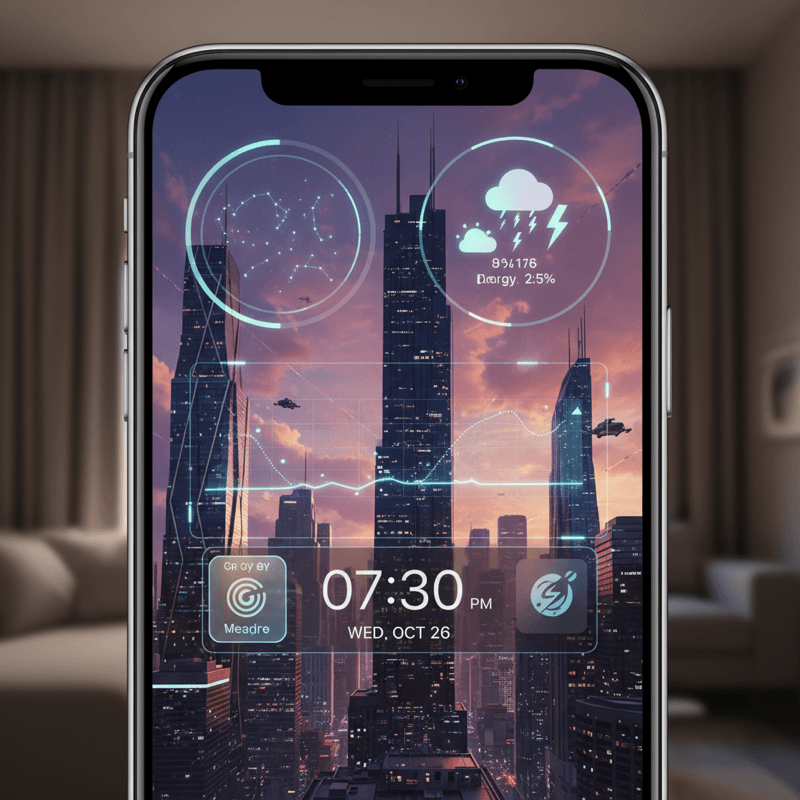
Future-Proof Your iPhone: Lock Screen Customization Secrets for 2026
Unlock the full potential of your iPhone lock screen! Dive into advanced customization, trending aesthetics, and productivity hacks. Future-proof your device now!