Quick Answer
Stop wasting time! This guide unlocks the best iOS productivity tips for 2026. Learn to manage time, automate tasks, and focus like a pro!
Introduction: Maximizing Your iOS Productivity in 2026
In the whirlwind of 2026, time is your most precious resource. We're bombarded with information and distractions, making productivity more crucial than ever. Thankfully, iOS has evolved into a powerhouse of productivity features. It's time to unlock its full potential! This guide will cover everything from smart time management to powerful automation, giving you the edge you need to thrive in both your personal and professional life. Let's dive into the best iOS productivity tips 2026 can deliver!
Studies show that implementing effective productivity strategies can boost output by an average of 62% in 2026. That's more free time, less stress, and bigger achievements!
We will cover: Time Management, Task organization, Automations, Focus tricks, the Apple ecosystem advantages, best productivity apps for iOS, and customization.
Mastering Time Management on iOS: Beyond the Basics
The Calendar app is more than just a schedule keeper; it's a strategic tool. Dive deep into its advanced features like smart scheduling, which leverages AI to suggest optimal meeting times based on everyone's availability. Combine that with time-blocking techniques in Reminders and third-party apps like Sorted 3, and you'll become a master of your schedule. And don't forget the power of Focus modes! Create custom modes for work, study, or creative endeavors to eliminate distractions and maximize your concentration. Use the 'Work' focus to only allow notifications from your colleagues and work apps. Become hyper-efficient by using this!
Calendar integration is KEY! Sync your Google Calendar, Outlook, and other services to get a complete overview of your commitments in one place. No more double-booking or missed appointments!
Task Organization: Streamlining Your Workflow with iOS
The Reminders app is a surprisingly powerful task management tool. Use lists to organize your tasks by project, category, or priority. Smart Lists automatically group tasks based on criteria like due date, location, or tags. Location-based reminders ensure you never forget to pick up groceries or complete a task when you're near a specific location. Collaborate seamlessly by sharing lists with colleagues or family members. For more advanced features, explore third-party apps like Todoist or Things 3. But don't overlook the power of the native Reminders app for streamlined simplicity! Make sure to add priorities to tasks.
Use Reminders for everything! Personal projects? Team projects? Travel planning? The Reminders app is versatile enough to handle it all. Get creative!
Harnessing the Power of Automation: Siri Shortcuts and Beyond
Siri Shortcuts are your secret weapon for iOS productivity. Create custom shortcuts for everyday tasks like setting alarms, sending messages, starting timers, or even controlling your smart home devices. The possibilities are endless! Take it a step further with advanced automation techniques. Use Shortcuts to integrate different apps and services, creating custom workflows that streamline your day. For example, create a 'Morning Routine' shortcut that turns on your lights, plays your favorite music, and reads your calendar for the day.
- 1
Open the Shortcuts app.
- 2
Tap the '+' button to create a new shortcut.
- 3
Add actions (e.g., 'Set Alarm', 'Send Message', 'Get Calendar Events').
- 4
Customize the actions and add triggers (e.g., voice command, time of day).
- 5
Save and run your shortcut!
Maximizing Focus and Minimizing Distractions on iOS
Focus modes are your shield against the digital deluge. Customize your notification settings, app restrictions, and home screens for different activities. Use Screen Time to track your app usage and identify time-wasting culprits. Take control of your digital well-being! For even more focus power, explore third-party apps like Freedom or Forest, which block distracting websites and apps. Integrate mindfulness apps like Calm with your Focus modes to create a truly zen-like work environment. It's time to be productive.
The Apple Ecosystem Advantage: Cross-Device Productivity
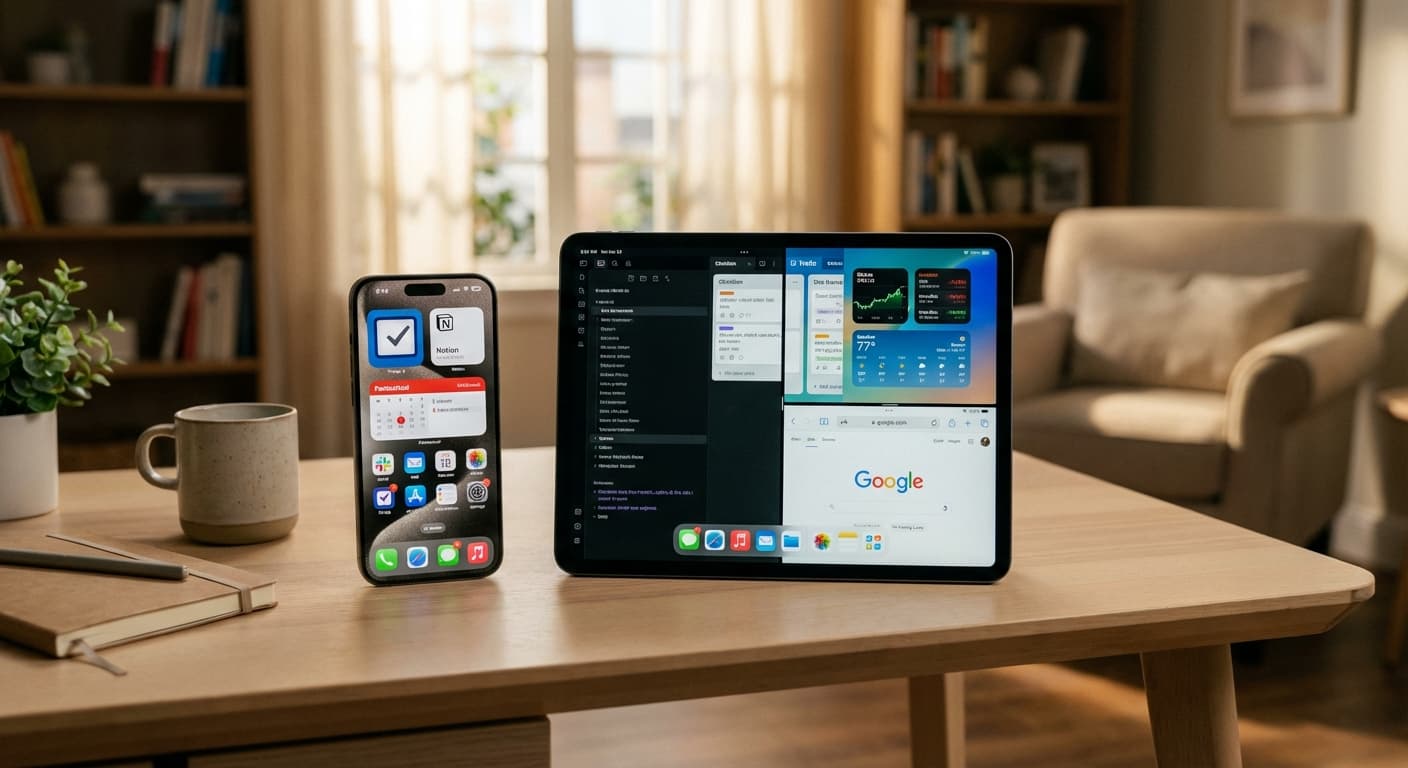
The Apple ecosystem is designed for seamless productivity. Transition effortlessly between your iPhone, iPad, and Mac with features like Handoff, which lets you continue working on a document or email on another device. Leverage iCloud for secure data storage and syncing, ensuring your files are always accessible. Universal Control (still amazing in 2026!) allows you to control multiple devices with a single keyboard and mouse. And don't underestimate the power of your Apple Watch for quick reminders and notifications. If you're lucky enough to have an Apple Vision Pro or similar, dive into augmented reality collaboration. Imagine building out your project in 3D in the office. It's the future.
Top Productivity Apps for iOS in 2026: A Curated List
While iOS offers fantastic native tools, sometimes you need a little extra firepower. Here's a quick rundown of some of the best productivity apps iOS 2026 has to offer: Todoist and Things 3 for project management, Notion for an all-in-one workspace, Bear and Craft for markdown note-taking, and NoteWall, the visually engaging note-taking app that helps you stay on top of everything!
Keep Reading: If you found this helpful, check out these related guides:
Lock Screen To-Do Lists in 2026: Unlock Peak Productivity (Without Unlocking Your Phone!)
Unlocking Peak Efficiency: Master iPhone Shortcuts Automation in 2026
The Ultimate Student Productivity Powerhouse: iPhone Apps to Ace 2026
For a comprehensive overview, visit our Lock Screen Productivity Guide.
Need a visual boost?
NoteWall is the best way to ensure you never miss an important reminder again. Perfect for home, work, and everything in between, it brings your notes to life!
Download NoteWallAdvanced Customization: Tailoring iOS to Your Productivity Needs
iOS 20 takes customization to a whole new level. Customize your Home Screen with strategically placed widgets that display key information at a glance. Use custom app icons and themes to create a personalized and inspiring work environment. Leverage accessibility features like voice control and dictation to boost your efficiency. Create custom keyboard shortcuts for frequently used phrases or commands. It's all about making iOS work for you, not the other way around. The best part about iOS is how malleable it is!
Conclusion: Achieving Peak Productivity with iOS in 2026
By implementing these best iOS productivity tips 2026 can offer, you can unlock your full potential and achieve peak performance. Experiment with different techniques, find what works best for you, and embrace the ever-evolving world of technology. Remember, productivity is a journey, not a destination. So, keep learning, keep adapting, and keep pushing yourself to achieve your goals. Now go out there and conquer your day!
Do you have any secret iOS productivity weapons in your arsenal? Share them in the comments below!

Founder of NoteWall. Building tools that turn your lock screen into a productivity system. About →
You might also like
Unlock Productivity: The Best Lock Screen Apps for iPhone
Transform your iPhone's lock screen into a productivity powerhouse! Discover the best lock screen apps to boost focus and achieve your goals. Get more done!
Unlock Peak 2026 Productivity: The Ultimate iPhone Focus Mode Hacks Guide
Master iPhone Focus Modes in 2026. Discover advanced AI-powered automation, cross-device integration, and deep work strategies to boost your productivity.
Future-Proof Your iPhone: Lock Screen Customization Secrets for 2026
Unlock the full potential of your iPhone lock screen! Dive into advanced customization, trending aesthetics, and productivity hacks. Future-proof your device now!